
Find your way around
The menu, lists, filters, forms and the actions shared by every screen.
Every TheSchool screen works the same way. Once you know how one works, you can use any module.
The side menu
The left menu groups screens into areas: Communications, Schooling, Users, Diverse, Finance, Infrastructures, Transport and Setings (sic: that's how the app spells it). Click an area to open it, then click the screen you want.
Some areas only show if the matching module is enabled for your school (Finance, Transport), and each screen only shows for the roles allowed to use it.
The top bar
- Notifications (bell): your latest notifications.
- Language: French, Arabic or English.
- Your account: Settings, Password, Sign out.
Lists
Most screens open on a list.
| Element | What it does |
|---|---|
| Refresh list | Reloads the data (useful if a colleague has just made a change). |
| Create a new … | Opens the creation form. |
| Filters | Search fields above the table (student, class, date…). Type a few letters, then pick from the suggestions. |
| Red ✕ button | Clears all filters. |
| Column headers | Click to sort; click again to reverse the order. |
| Checkboxes | Select rows for a bulk action (for example Graduer, graduate). |
| View · Edit · Delete | Actions on a row. Deleting always asks for confirmation. |
| Pagination | At the bottom of the list, with the total number of items. |
Some screens offer several views of the same data, for example Carte (card) / list for annexes, or calendar / list for the schedule. Each help page lists the views available.
Current school year
Lists show the data of the active school year. Directors and administrators only see the data of the annexes assigned to them.
Forms
- Search fields (student, class, teacher…) suggest results as you type: always pick an item from the suggestions; text typed on its own is ignored. Suggestions are coloured to tell similar items apart: for a class, for example, the class name in blue, then its annexe, then the school code in orange.
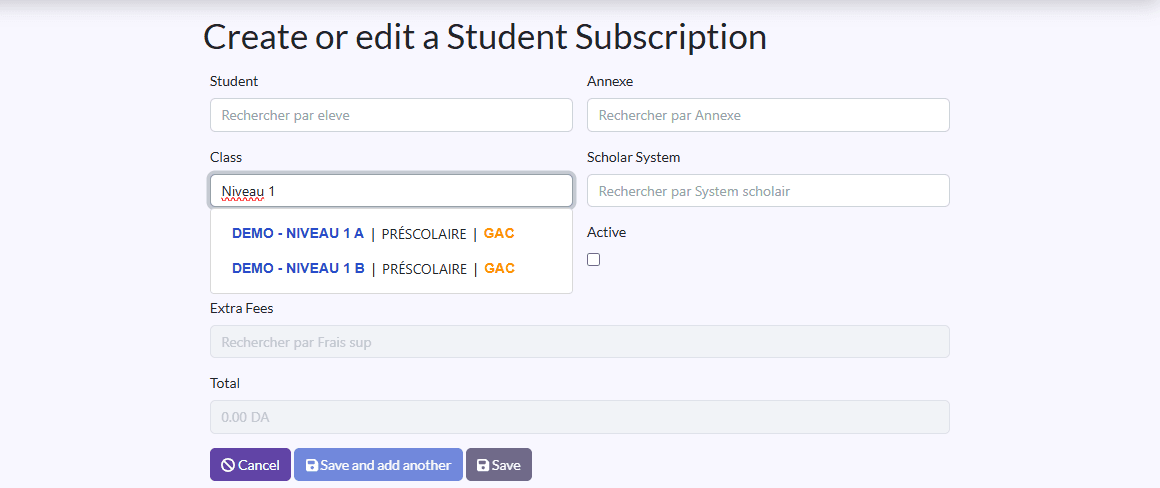
- Save saves and goes back to the list.
- Sauvegarder et créer un/une autre (save and create another) saves and clears the form for a new entry: ideal for creating several items in a row.
- Cancel goes back without saving.
- A message at the top of the screen confirms the save or explains what needs fixing.
Detail pages
View opens an item's full detail page. Linked items (student, class…) are clickable and open their own page. From the detail page, Edit opens the form and Back returns to the list.