
Instalment
Collect families' instalments (cash, cheque, transfer…), follow late payments and print receipts.
- Where to find it
- FinanceInstalment
- Who can use it
- CEOAdmin managerAccountantCashier
- Condition
- Only visible if the Finance module is enabled for your school.
An instalment is one part of a payment: an amount due by a date. This is where the front desk collects money.
The screen at a glance
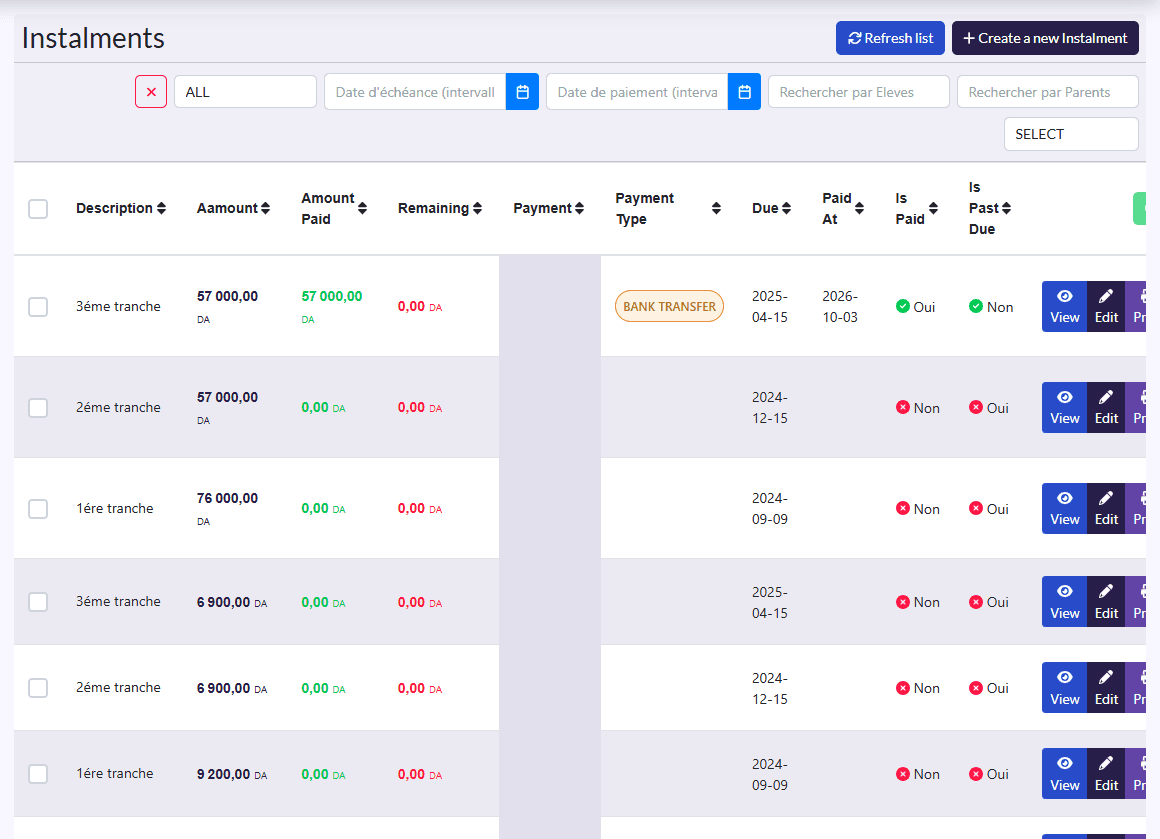
- Filters: status, due date range, payment date range, student, parent, payment type, and the ✕ button.
- Columns: Description (1st instalment…), Amount, Amount Paid, Remaining, Payment, Payment Type, Due, Paid At, Is Paid, Is Past Due.
- Actions: Refresh list, Create a new Instalment; on a selection, Marquer comme payé (mark as paid); on each row View, Edit, Imprimer (print), Payer (pay), Delete.
Collect an instalment
- Click Edit on the instalment.
- Enter the Amount Paid and the Paid At date.
- Pick the Payment Type: cash, cheque, bank transfer, e-payment or free (shown in French: ESPÈCES, CHÈQUE, VIREMENT BANCAIRE, E-PAIEMENT, GRATUIT).
- For a cheque, fill in the Check Number, Bank and Serial Number.
- Click Save.
A partial payment is possible: Remaining shows what is left to pay.
Collect fast: pay and mark as paid
- Payer on a row, or Marquer comme payé on several ticked instalments, opens the Payment Confirmation window: the Full Amount, Today's Date and the BANK TRANSFER type.
- Confirming records the instalments as fully paid, today, by bank transfer.
Cash or cheque
These shortcuts always record a bank transfer for the full amount. For cash, a cheque or a partial payment, use Edit.
Follow late payments and print
An instalment unpaid by its due date becomes past due. Filter on the due date range to prepare reminders. Imprimer produces an instalment's receipt.
Instalments created automatically
If “Générer un paiement (Auto)” and “Générer des versements (Auto)” are on in Setings, each enrolment creates its instalments, split according to:
- the level's Payment by amount, for an enrolment with CUSTOM billing;
- otherwise the school's and year's Payment by Percentage, if any;
- otherwise the enrolment's billing type (monthly, quarterly, yearly).
Class or fee changes
When an enrolment's total changes, its instalments are recreated, including paid ones. Check the student's situation after the change (a fix is in progress).