
Payment
Follow what each family owes for an enrolment, what they paid, and apply discounts.
- Where to find it
- FinancePayment
- Who can use it
- CEOAdmin managerAccountantCashierAdmin
- Condition
- Only visible if the Finance module is enabled for your school.
A payment is the amount a family owes for a child's enrolment. It is split into instalments, collected during the year.
Created automatically
If “Générer un paiement (Auto)” (generate payment) is on in Setings, each enrolment creates its payment, for the enrolment's total. With “Générer des versements (Auto)”, its instalments are created too: see Instalment.
The screen at a glance
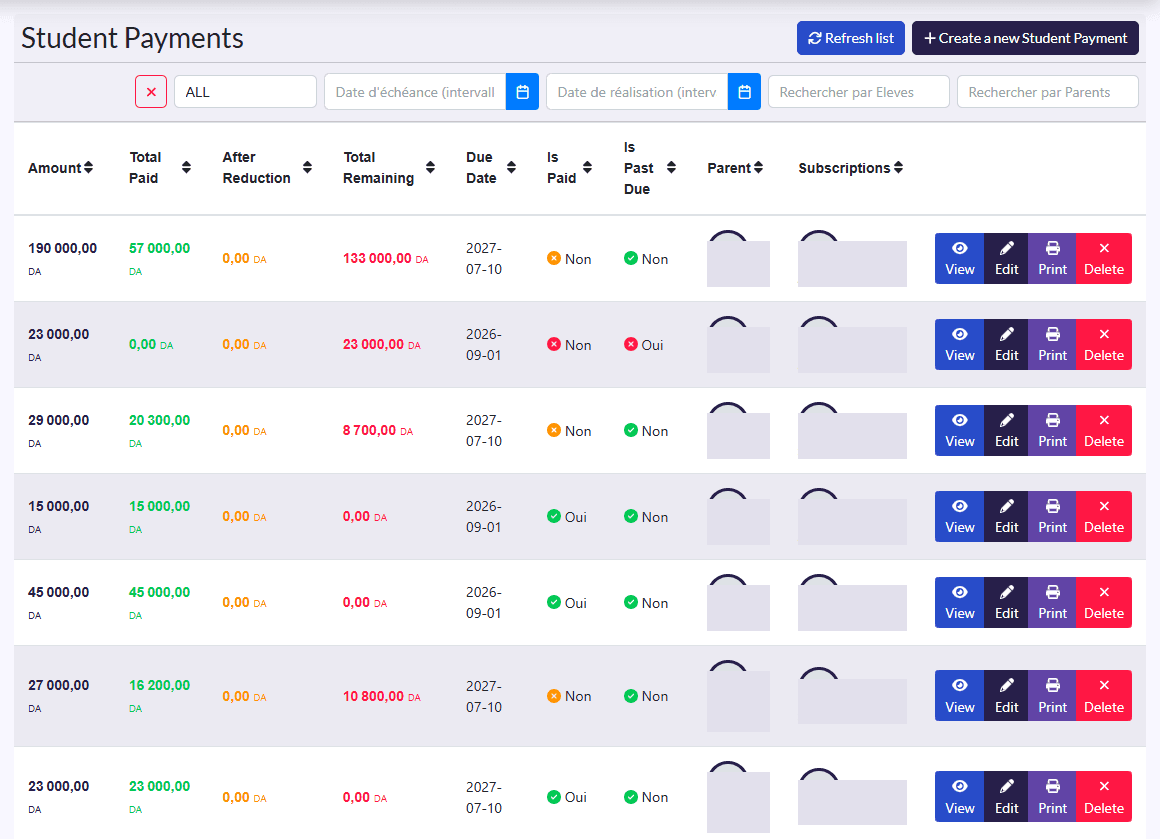
- Filters: status, due date range, completion date range, student, parent, and the ✕ button.
- Columns: Amount, Total Paid (green), After Reduction, Total Remaining (red), Due Date, Is Paid, Is Past Due, Parent, Subscriptions (the enrolment).
- Actions: Refresh list, Create a new Student Payment; on each row View, Edit, Imprimer (print), Delete.
Apply a discount
- Click Edit on the payment.
- In Discounts, add one or more discount types (siblings, staff child…). Discounts are percentages.
- Click Save: After Reduction and Total Remaining are recalculated.
That's how a special price is given: the enrolment's total itself is never changed by hand.
Create a payment by hand
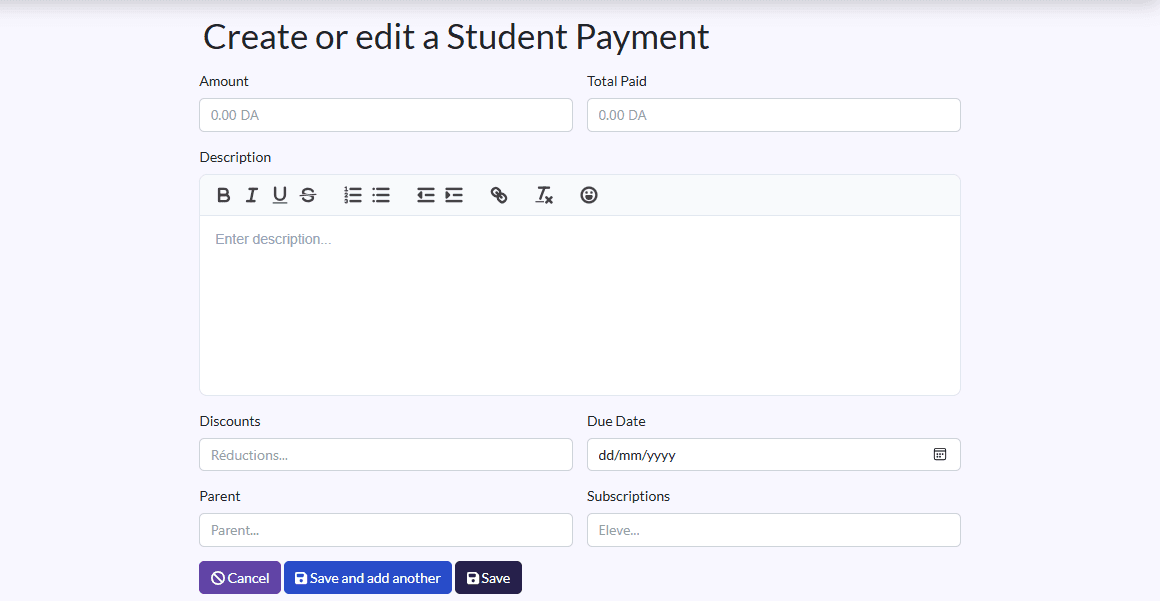
Create a new Student Payment: Amount, Total Paid, Description, Discounts, Due Date, Parent and Subscriptions. Useful for a payment outside an enrolment; usually, let TheSchool create them.
View and print
View details the amount, what is paid, the discount, what is left and the Is Paid / Is Past Due badges. Imprimer gives a paper version for the family.