
Student Subscription
Enrol a student in their class for the year, calculate their fees and move a class up a level.
- Where to find it
- SchoolingStudents ManagementStudent Subscription
- Who can use it
- CEOAdmin managerDirectorAdminAccountantCashier
A student subscription (enrolment) links a student to a class for the school year. It is what:
- puts the student in their class's lists (attendance, evaluations, schedule…);
- sets the total amount of their tuition and, if your school has enabled it, creates their payment in the Finance module.
A student must first exist in Student before being enrolled.
The screen at a glance
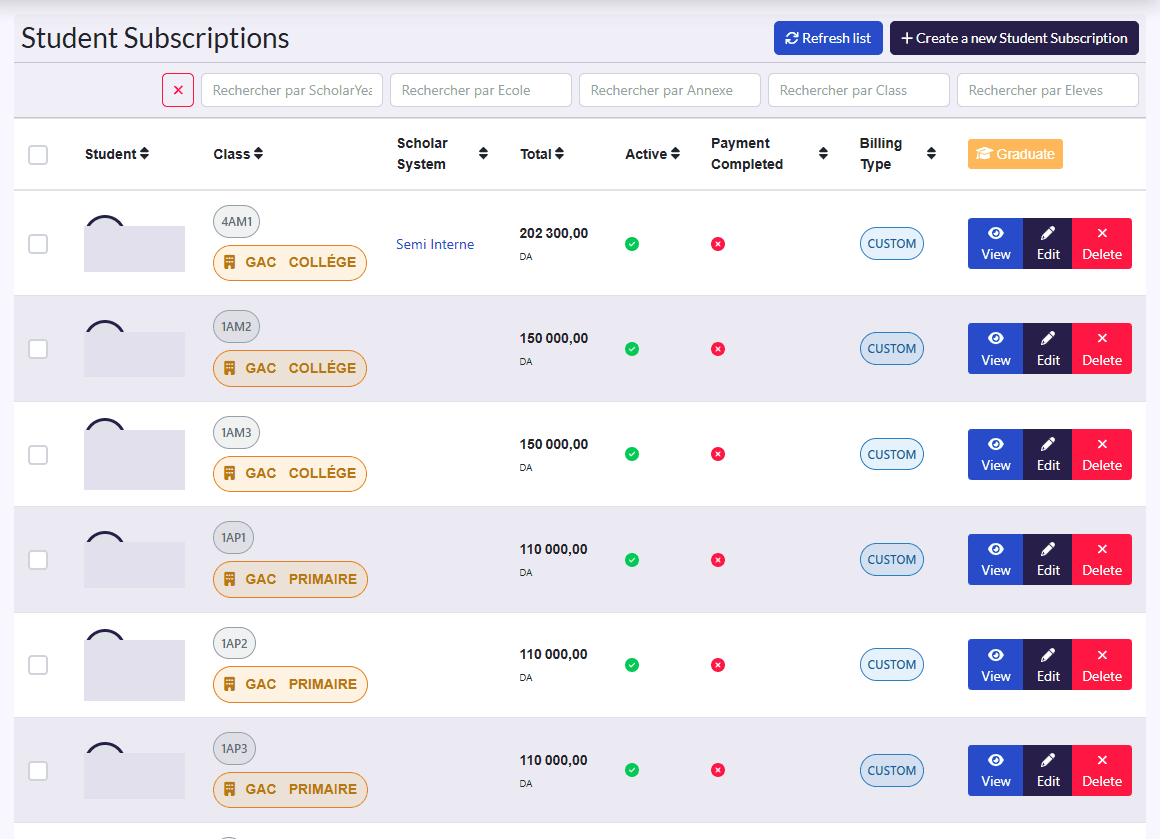
Filters: school year, school, annexe, class, and the ✕ button to clear them all. (The filter placeholders are in French.)
Columns:
| Column | Meaning |
|---|---|
| Student | The student's photo and name |
| Class | The enrolment's class |
| Scholar System | The enrolment's school system |
| Total | Total tuition amount, in DA |
| Active | Is the enrolment current? (An enrolment replaced by a graduation becomes inactive.) |
| Payment Completed | Is the tuition fully paid? |
| Billing Type | Monthly, quarterly, yearly or custom |
Actions: Refresh list, Create a new Student Subscription; on each row View, Edit, Delete; on a selection, Graduer (graduate).
Enrol a student
Before you start
Level fees must be set: the enrolment total is calculated from the fees of the class's level.
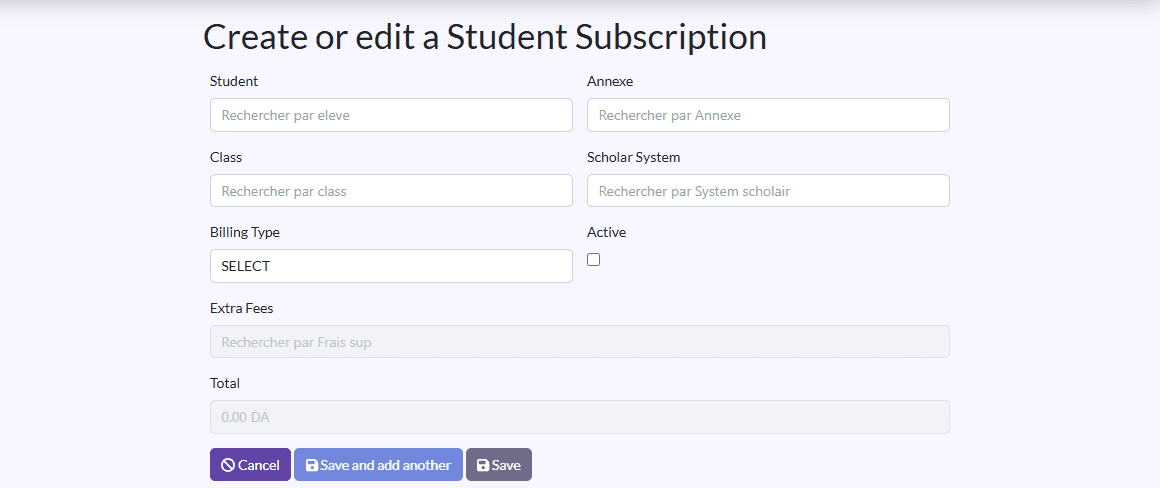
- Click Create a new Student Subscription.
- Student: search for the student and select them.
- Annexe (optional): pick the annexe to only suggest its classes.
- Class: select the class. Each suggestion shows class | annexe | school.
- Scholar System: select the school system.
- Billing Type: MONTHLY, QUARTERLY, YEARLY or CUSTOM.
- Leave Active ticked.
- Extra Fees (optional): add fees on top of tuition (transport, canteen…).
- Check the Total: it is calculated automatically (level fee + extra fees) and updates whenever the class or the extra fees change.
- Click Save, or Sauvegarder et créer un/une autre (save and create another) to go on with the next student.
How the total is calculated
Total = fees of the class's level + sum of the extra fees.
The total is never typed by hand: even if you type another amount in the field, TheSchool always saves level fee + extra fees. For a special price (siblings, scholarship…), apply a discount type on the payment.
Edit an enrolment
Click Edit. You can, among other things:
- move the student to another class during the year: the total is recalculated with the new level's fees;
- add or remove extra fees.
Total changes and instalments
When the total changes (class or extra fees), the student's payment is recreated with the new amount, and its instalments are deleted. If the student has already paid instalments, check their situation in Instalment after the change.
Move students to another class (Graduer)
At the end of the year, Graduer (graduate) enrols several students at once in their new class.
- Filter the list on the class finishing its year (annexe and class filters).
- Tick the students concerned. The header checkbox selects the whole page.
- Click Graduer.
- In the Confirmation de graduation window ("Please select the class in which the graduate students are continuing their studies."), pick the school year and the annexe to narrow the search, then the destination class.
- Click Graduer.
For each selected student, TheSchool:
- creates a new active enrolment in the destination class, with the same school system and billing type, the total recalculated for the new level and Payment Completed set to "no";
- sets the old enrolment to Active = no. It stays visible for the record.
Extra fees
A new year means new fees: the student pays the new level's fees and the new year's extra fees (transport, canteen…). The old enrolment's extra fees are therefore not carried over: add this year's chosen extra fees to the new enrolment.
Graduer is available to the CEO, director, administrator and teacher.
Delete an enrolment
Warning
Deleting an enrolment also deletes its payments and instalments in the Finance module. For a student leaving the school, untick Active instead to keep the history.
What happens next
- If automatic payment generation is enabled in Setings, a payment of the total amount is created for the student (see Payment). It is due at the start of the school year for yearly billing, and at the end of the school year otherwise.
- The student shows in the screens linked to their class: attendance, reports, evaluations, schedule.