
Daily Report
Tell parents about their child's day (mood, meals, nap, focus, health).
- Where to find it
- SchoolingStudents ManagementDaily Report
- Who can use it
- CEOAdmin managerDirectorAdminHead teacherTeacher Parents: from the parent app
The daily report sums up a student's day for their parents: presence, mood, eating, drinking, nap, work concentration and health, with a free comment. It is mostly used in nurseries, kindergartens and primary schools.
The screen at a glance
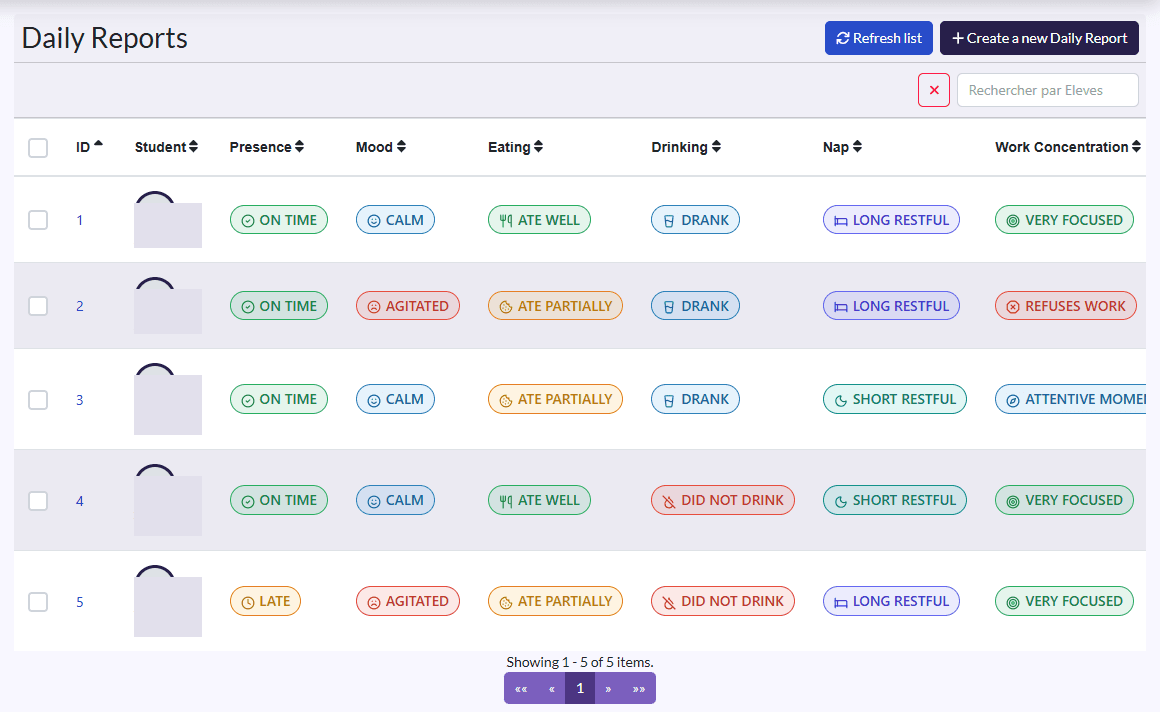
- Filters: a student and a date, and the ✕ button to clear them.
- Columns: Student, Presence, Mood, Eating, Drinking, Nap, Work Concentration, Health.
- Actions: Refresh list, Create a new Daily Report; on each row View, Edit, Delete.
Write a report
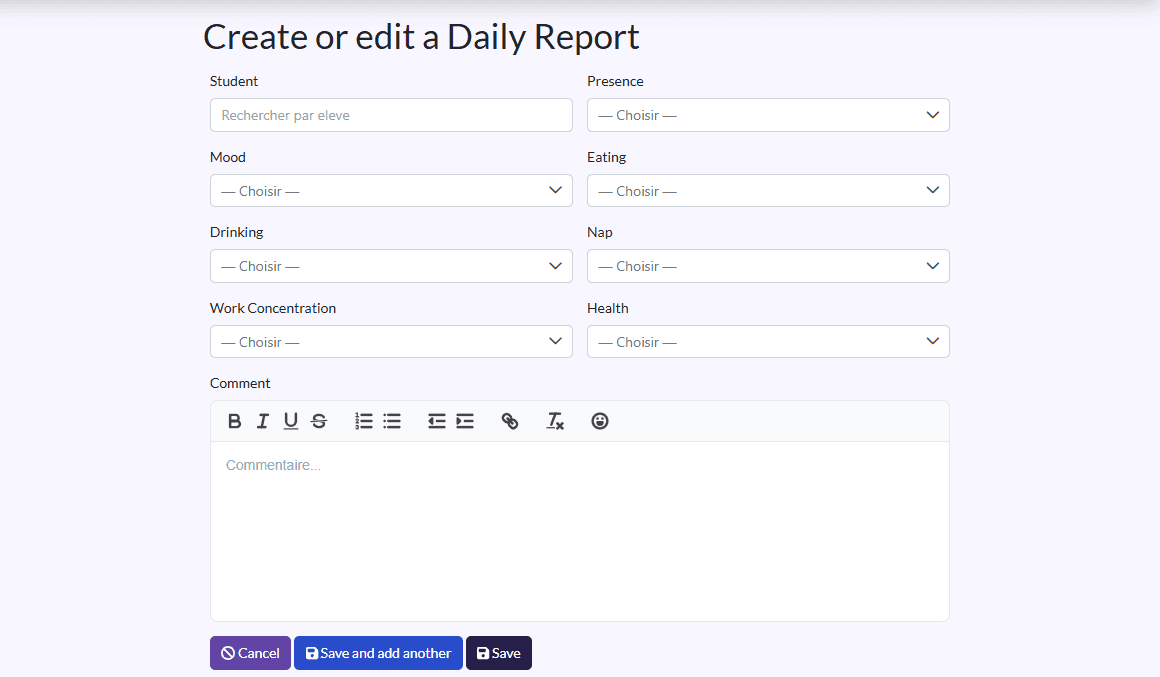
- Click Create a new Daily Report.
- Student: search for and select the student.
- Pick a value in each list (see the table below).
- Add a Comment if you like: a word about the day, an activity, information for the parents.
- Click Save, or Sauvegarder et créer un/une autre (save and create another) to go on with the next student.
Possible values
Each value is picked from a list of coloured badges with an icon (green when all is well, orange for a point of attention, red for a problem). The same badges show in the list and on the report's page: the day reads at a glance.
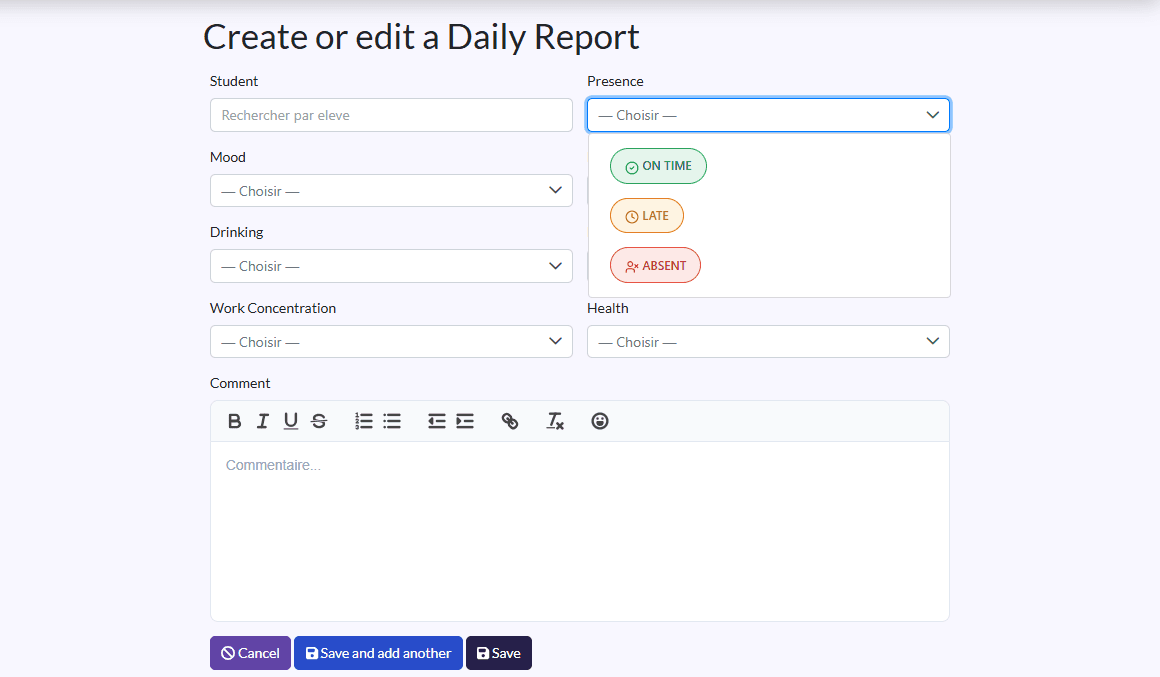
| Field | Values |
|---|---|
| Presence | ON TIME · LATE · ABSENT |
| Mood | CALM · AGITATED · CHATTY · TIRED · VERY DYNAMIC |
| Eating | ATE WELL · ATE PARTIALLY · DID NOT EAT |
| Drinking | DRANK · DID NOT DRINK |
| Nap | LONG RESTFUL · SHORT RESTFUL · DID NOT SLEEP |
| Work Concentration | VERY FOCUSED · ATTENTIVE MOMENTS · DYNAMIC PARTICIPATIVE · NOT MOTIVATED · REFUSES WORK |
| Health | NOTHING TO REPORT · FEVER / FATIGUE |
View, correct or delete
- View shows the full report, with its badges, its author (Created By) and its date.
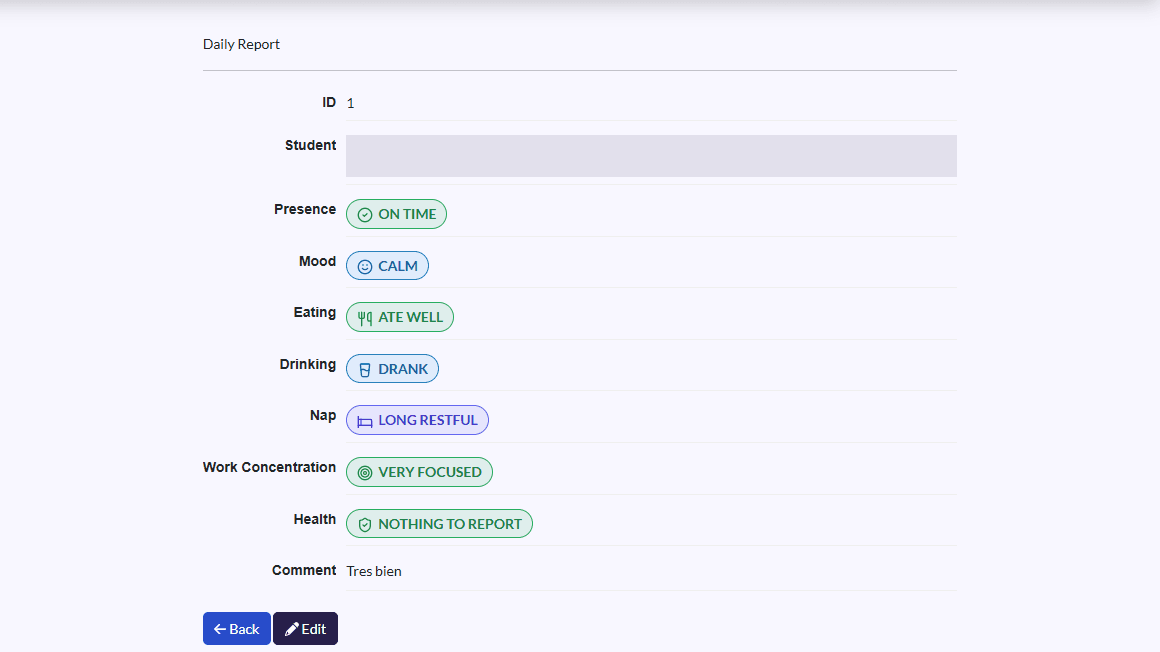
- Edit lets you correct a report.
- Delete deletes it after confirmation.
What happens next
When a new report is saved, the parents (main parent and second parent) get a notification telling them their child's daily report is available. They read it in the parent app.
To go faster
Teachers can also fill in reports from the teacher app.