
Session
Record absences at each lesson, from the class's schedule.
- Where to find it
- SchoolingStudents ManagementSession
- Who can use it
- CEOAdmin managerDirectorAdminSecretary
- Condition
- Visible if your school records absences per lesson. Otherwise the menu shows “Présence quotidienne”.
A session is a lesson that took place: a schedule slot (class, teacher, subject) on a given date. For each session, you record the absent students and can add notes about how the lesson went.
Attendance per lesson or per day
This screen is used when your school records absences at each lesson. If your school records them once a day, the menu shows Daily Presence instead.
The screen at a glance
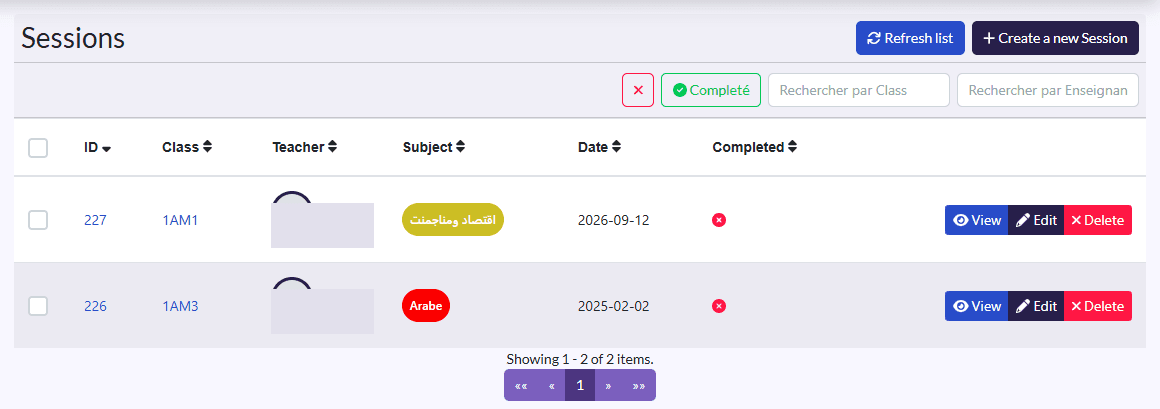
The list shows the Class, Teacher, Subject, Date and Completed columns.
- Refresh list, Create a new Session.
- The Completé (completed) button filters the list on finished sessions (it turns green). Click it again to see the others.
- The search field and the ✕ button to clear the filters.
- On each row: View, Edit, Delete.
Record a session from the schedule
This is the fastest way, because the slot is already filled in.
- Open Schedule and show the class in calendar view.
- On the lesson's slot, click the Session icon (ticked clipboard).
- The Create or edit a Session form opens, with the slot shown at the top (teacher, subject, day and time).
- Check the Date.
- In Absences, search for and select the absent students.
- Add Notes if needed (lesson content, incidents…).
- Tick Completed if the lesson is over.
- Click Save.
From the form, the Calendar button takes you back to the schedule to pick another slot.
View or correct a session
- View shows the date, the Completed state, the notes, the slot and the list of absences.
- Edit lets you add or remove absent students, complete the notes or mark the session as completed.
What happens next
The parents (main parent and second parent) of each student added to the absences get a notification in the parent app telling them their child is absent today.