
SchoolingCourse Management
Schedule
Build each class's and each teacher's timetable, view it as a calendar and print it.
- Where to find it
- SchoolingCourse ManagementSchedule
- Who can use it
- CEOAdmin managerDirectorAdminHead teacherTeacher Parents: from the parent app
Video coming soon Checked on October 3, 2026
The schedule is the school timetable. Each slot links a weekday, a start and end time, a class, a teacher, a subject and a trimester. It shows as a calendar or a list, per class or per teacher.
Show a class's schedule
- Open Schedule. Until a filter is picked, the screen says “Select at least a teacher or a class”.
- Pick a class (or a teacher) in the filters.
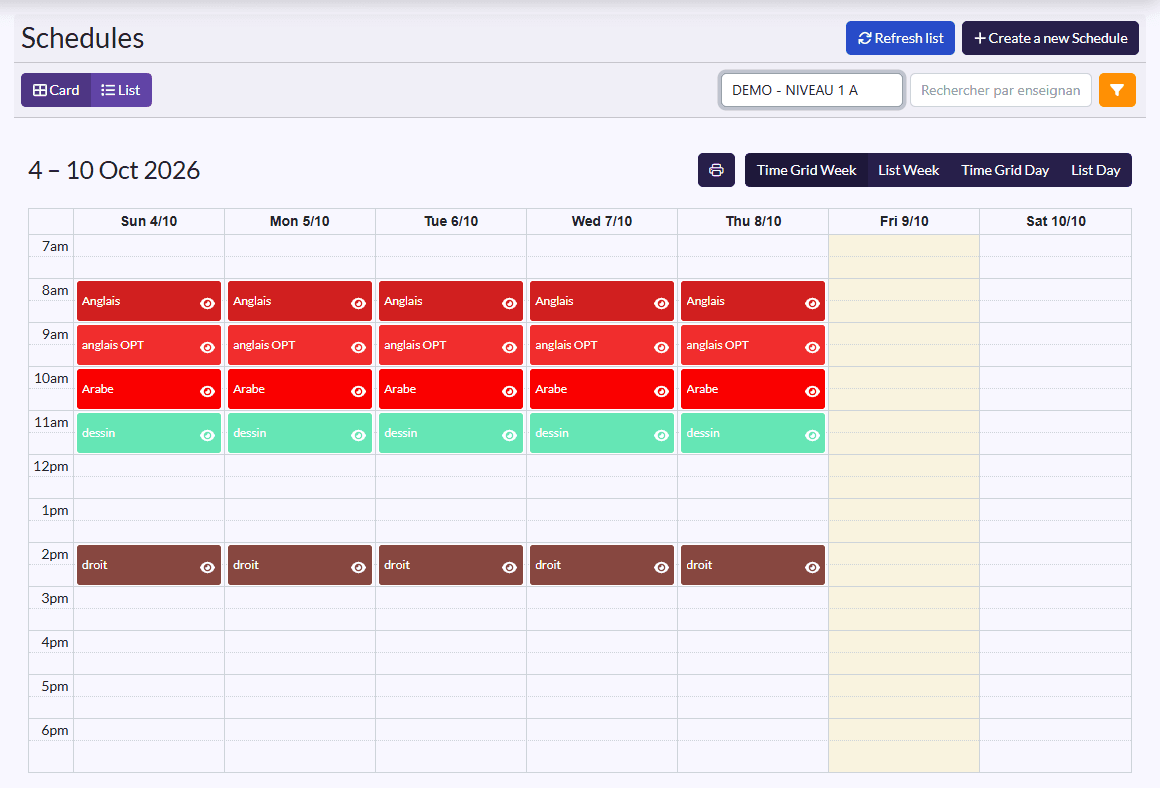
- Each lesson shows in its subject's colour, with two icons: session (clipboard) and view (eye).
- The buttons above the calendar change the display: week grid, week list, day grid, day list. The printer icon prints the view.
- Carte (card) / Liste (list) switches between the calendar and the table (Weekday, Subject, Teacher, Class, Start Time, End Time, Trimester).
Add a slot
- Click Create a new Schedule.
- Fill in the Weekday, Start Time and End Time.
- Pick the Teacher, the Class, the Subject and the Trimester.
- Click Sauvegarder et créer un/une autre (save and create another) to go through the week's slots, then Save for the last one.
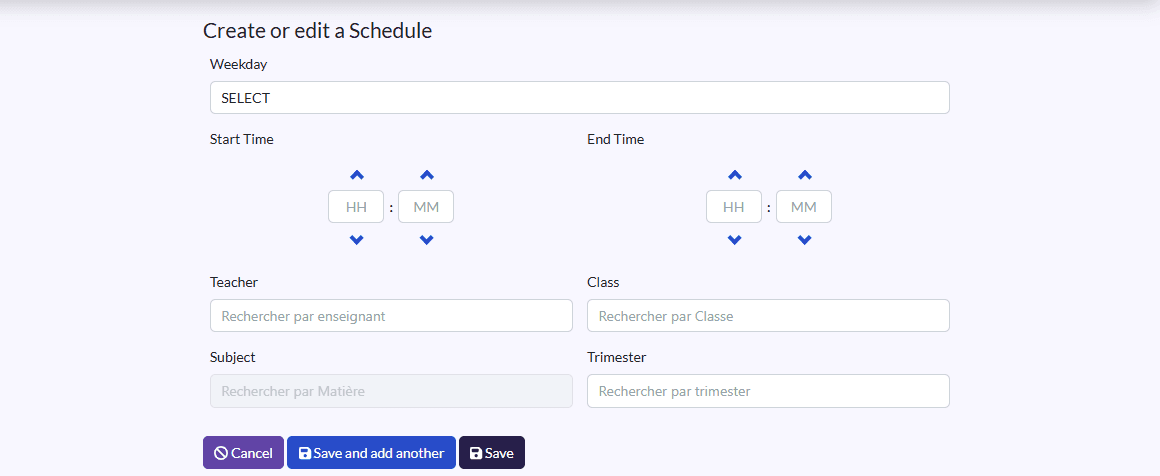
Creating and editing are reserved for management, administration, the head teacher and the front office. Everyone can view.
Print timetables
In list view, use Imprimer par Classes (print by classes) or Imprimer par Enseignants (print by teachers). The print window lets you pick a class or a teacher, or Imprimer tout (print all).
Record a session from the schedule
If your school records absences at each lesson, a slot's session icon (clipboard) opens that day's session, pre-filled with the slot.