
SchoolingCourse Management
Evaluation
Enter students' marks (CC, tests, exam), one at a time or for a whole class.
- Where to find it
- SchoolingCourse ManagementEvaluation
- Who can use it
- CEOAdmin managerDirectorAdminHead teacherTeacher
Video coming soon Checked on October 3, 2026
An evaluation is a mark: a student, a subject, a trimester, an assessment type and a scale. The screen has two views: Liste (list) to review and correct, Groupé (grouped) to enter a whole class's marks at once.
List view
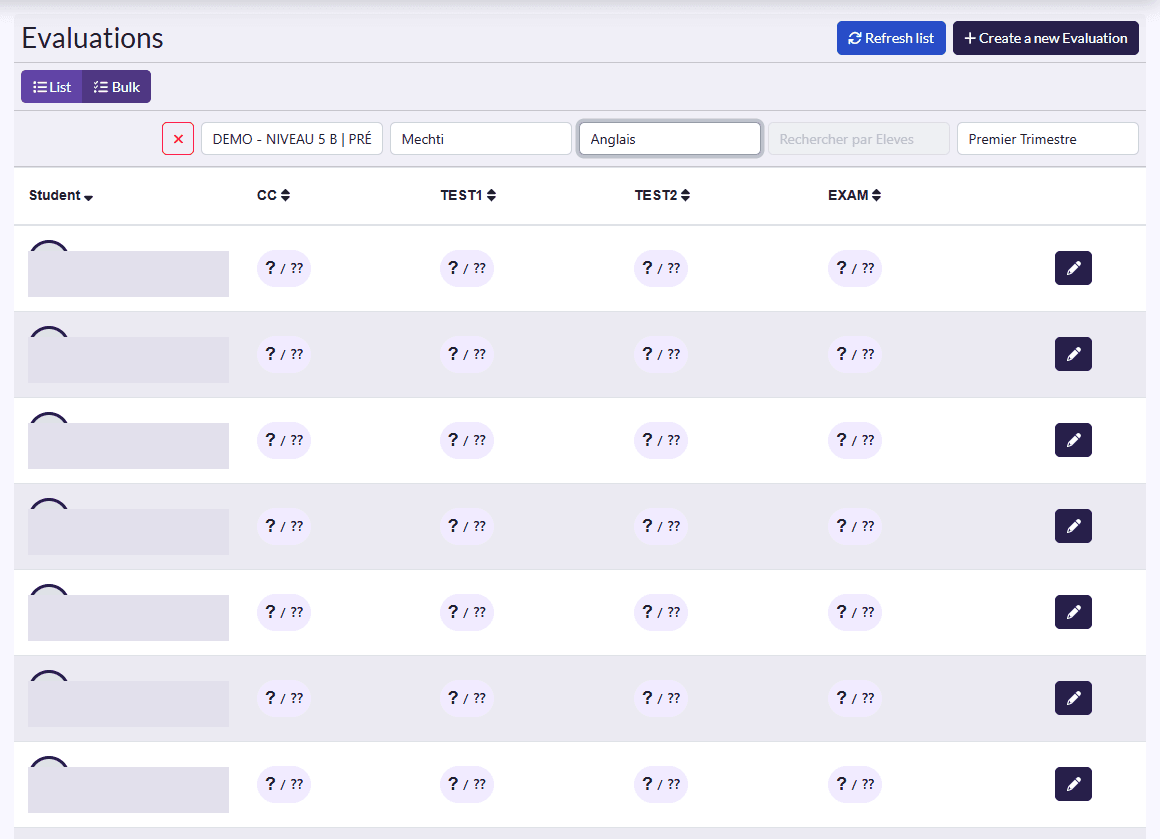
- Filters: class, teacher, subject, student, trimester, and the ✕ button to clear them.
- Columns: Subject, Student, Teacher, Trimester, Type, Mark.
- Actions: Refresh list, Create a new Evaluation; on each row View, Edit, Delete.
Enter a mark
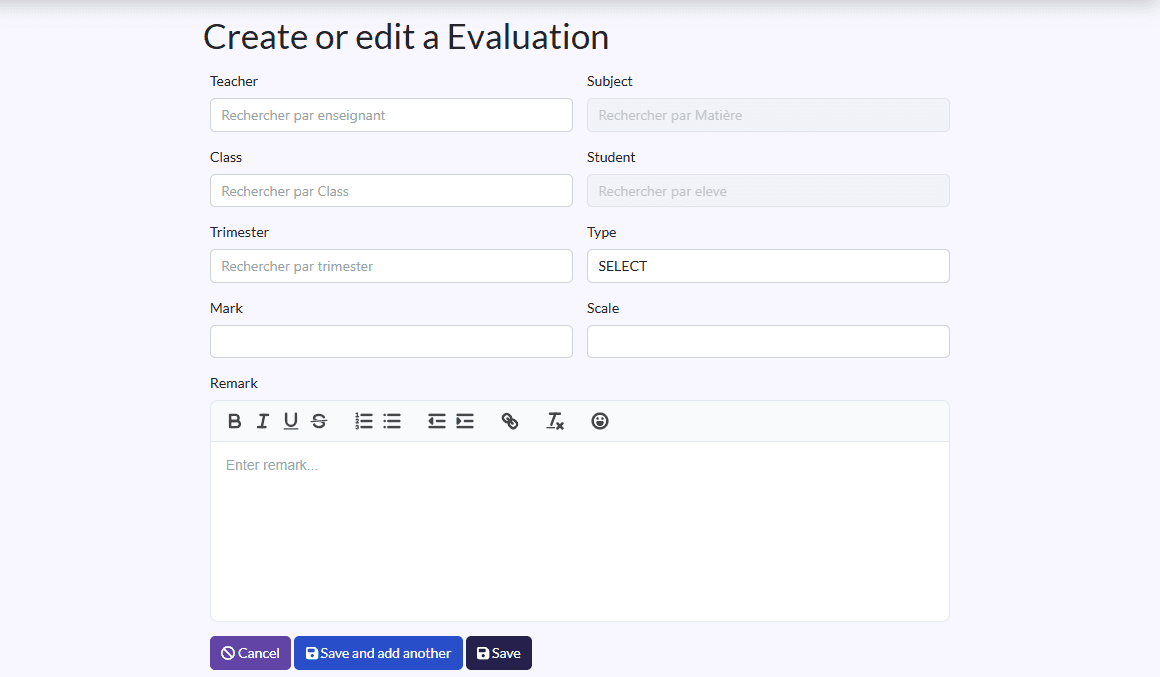
- Click Create a new Evaluation.
- Pick the Teacher, the Subject, the Class, then the Student (only the class's students are suggested).
- Pick the Trimester and the Type: CC, TEST1, TEST2 or EXAM.
- Enter the Mark and the Scale (for example 20), and a Remark if needed.
- Click Save, or Sauvegarder et créer un/une autre (save and create another) for the next student.
Grouped view: mark a whole class
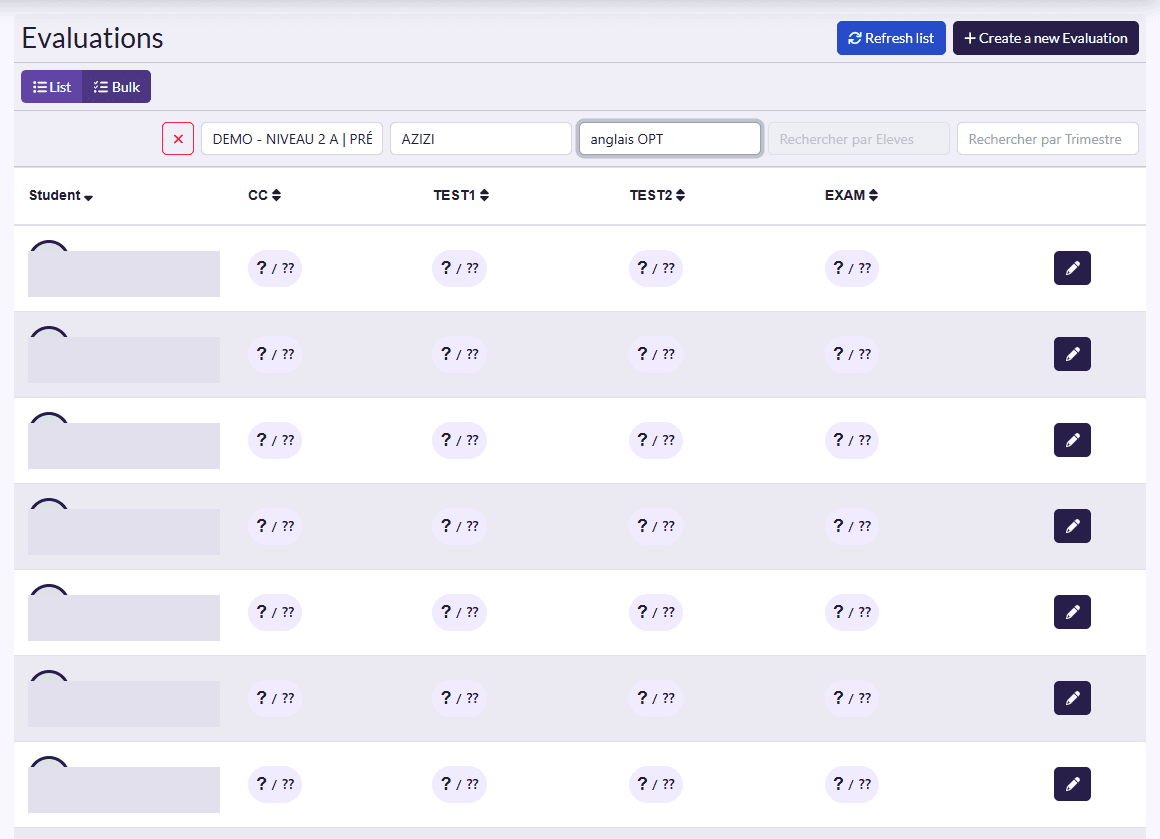
- Click Groupé.
- Pick the class, the teacher and the subject in the filters (until all three are picked, the screen shows “Class, Teacher and Subject must be selected”).
- The table shows one row per student, with the CC, TEST1, TEST2 and EXAM columns.
- Click a row's pencil, enter the marks, then confirm. Move on to the next row.
Fastest
For a test taken by the whole class, the grouped view saves opening one form per student.
What happens next
Parents see their children's marks in the parent app.