
SchoolingCourse Management
Course
Publish course material for one or more classes, approve it and make it visible to families.
- Where to find it
- SchoolingCourse ManagementCourse
- Who can use it
- CEOAdmin managerDirectorAdminHead teacherTeacher Parents: from the parent app
Video coming soon Checked on October 3, 2026
A course is teaching material (text, PDF, images…) published by a teacher for one or more classes. Once approved, students and their parents see it in the mobile apps.
The screen at a glance
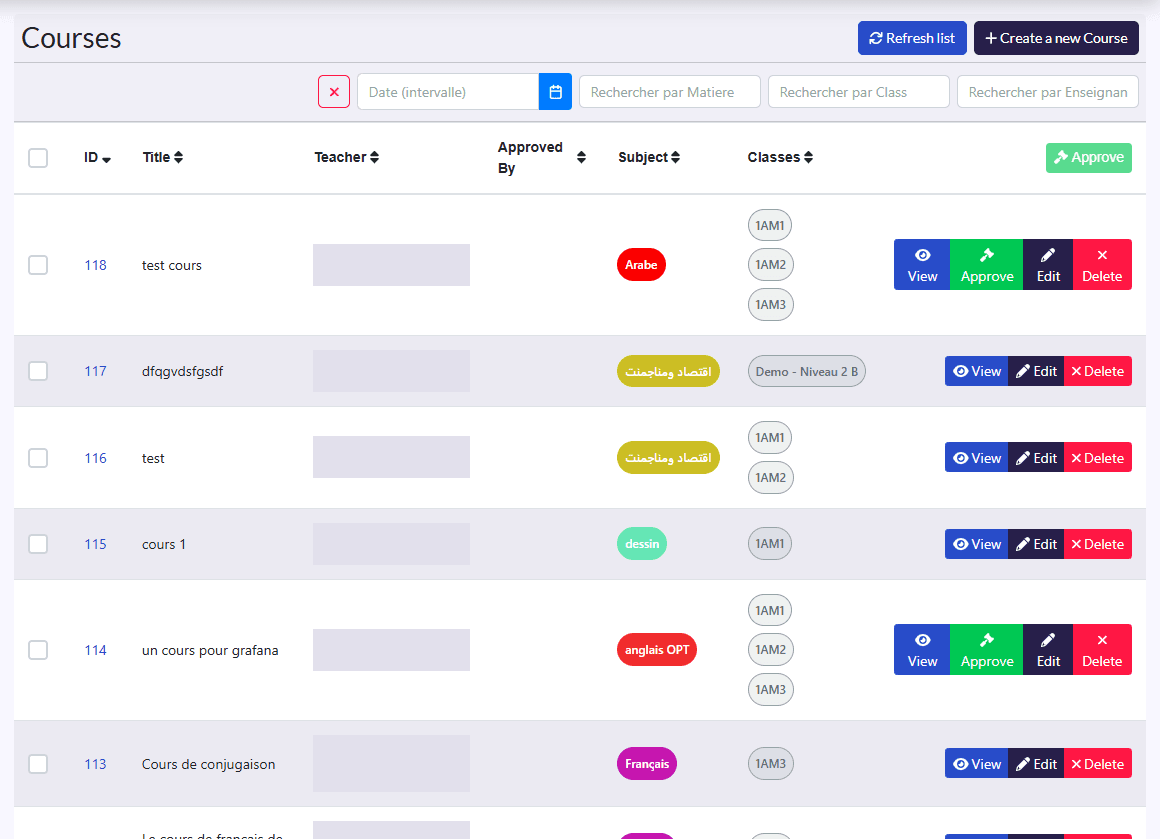
- Filters: date, teacher, subject, class, and the ✕ button to clear them.
- Columns: Title, Teacher, Approved By, Subject, Classes.
- Actions: Refresh list, Create a new Course; on a selection, Approuver (approve); on each row View, approve (if not done yet), Edit, Delete.
Publish a course
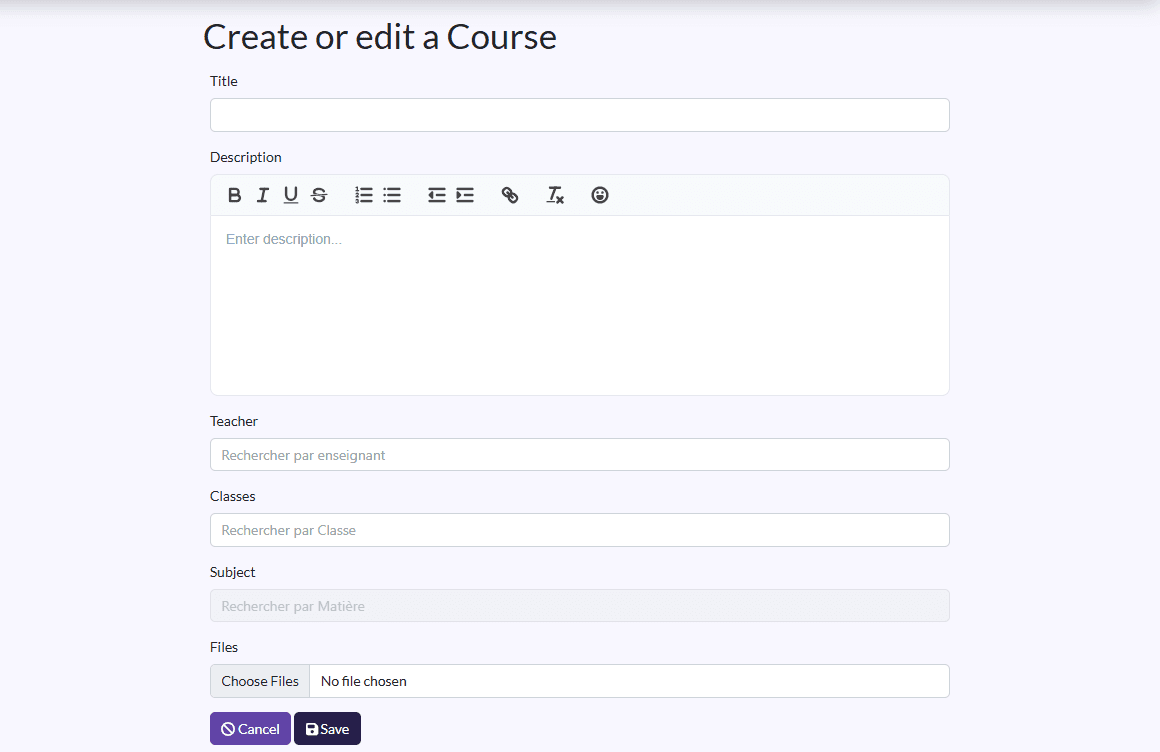
- Click Create a new Course.
- Fill in the Title and the Description (formatted text).
- Pick the Teacher, one or more Classes and the Subject.
- Add your documents in Files.
- Click Save.
Approve a course
Families only see a course once it is approved. Tick one or more courses in the list and click Approuver, or use the row's approve button. The Approved By column shows who approved it.
Approving is reserved for the CEO, head administrator, director, administrator and head teacher.
View a course
View shows the title, description, subject, teacher, classes and Files: click a file to open it.
What happens next
- On creation, the school's administrators get a notification that a new course was created, so they can approve it.
- On approval, the students of the selected classes and their two parents get a notification, and the course shows in their apps.