
Convocation
Call a student's parents in, follow up the meeting and keep its minutes.
- Where to find it
- SchoolingStudents ManagementConvocation
- Who can use it
- CEOAdmin managerDirectorAdminHead teacherTeacher
A convocation invites a student's parents to a meeting with the school: repeated absences, discipline, school results… It also keeps track of the meeting: status and minutes.
The screen at a glance
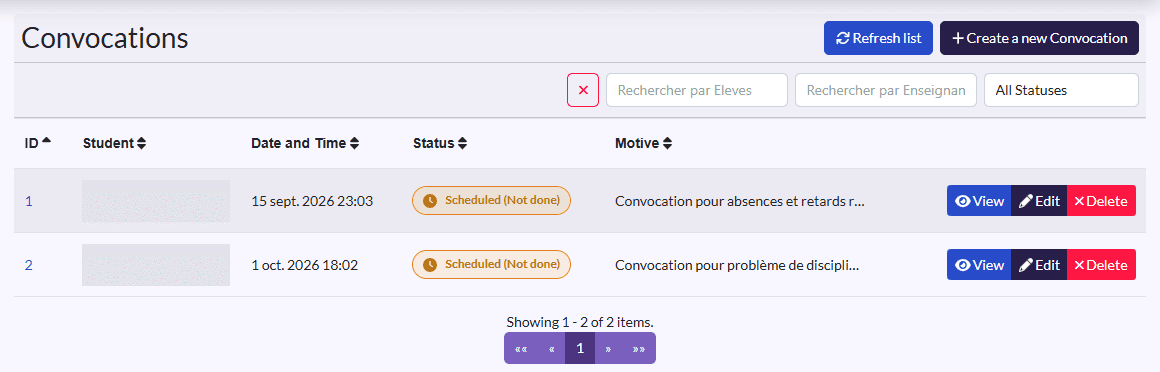
- Filters: a student and the status (All Statuses, Completed, Scheduled (Not done)), and the ✕ button to clear them.
- Columns: Student, Date and Time, Status (green Done or orange badge), Motive.
- Actions: Refresh list, Create a new Convocation; on each row View, Edit, Delete.
Call parents in
-
Click Create a new Convocation.
-
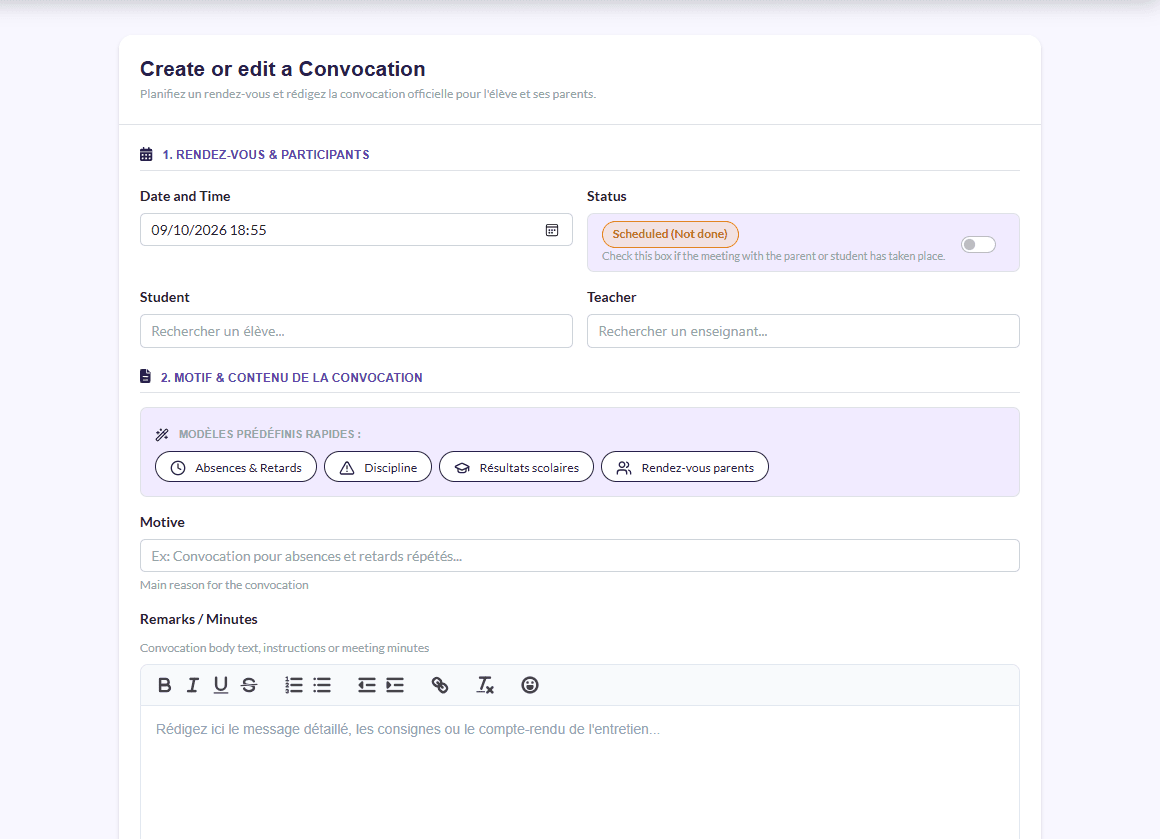
Date and Time: when the meeting takes place.
-
Student: the student concerned. Their parents will be notified.
-
Teacher: the person meeting the parents.
-
Save time with the Modèles prédéfinis rapides (quick templates, in French). One click fills in the motive and a standard text:
Template Suggested motive Absences & Retards Repeated absences and late arrivals Discipline Discipline and behaviour problem Résultats scolaires Review and follow-up of school results Rendez-vous parents Teaching meeting with the parents -
Adjust the Motive and the Remarks / Minutes text if needed.
-
Leave Status unticked: the meeting hasn't taken place yet.
-
Click Save.
After the meeting: close the convocation
- Open the convocation with Edit.
- Tick Status: the convocation becomes Done.
- In Remarks / Minutes, write down what was said and decided (commitments, follow-up…).
- Click Save.
The minutes stay attached to the convocation and can be read at any time.
What happens next
When it is created, the student's parents get a notification about the new convocation and read it in the parent app.