
Daily Presence
Record each day the absent and late students of a class, and let the parents know.
- Where to find it
- SchoolingStudents ManagementDaily Presence
- Who can use it
- CEOAdmin managerDirectorAdminSecretary
- Condition
- Visible if your school records absences per day. Otherwise the menu shows “Session” (absences per lesson).
Daily presence records, class by class, the students who are absent and the students who are late that day. You only enter the exceptions: any student not recorded counts as present.
Screens partly in French
Parts of this screen are not translated yet and show in French in every language. The labels below are quoted as you will see them.
The screen at a glance
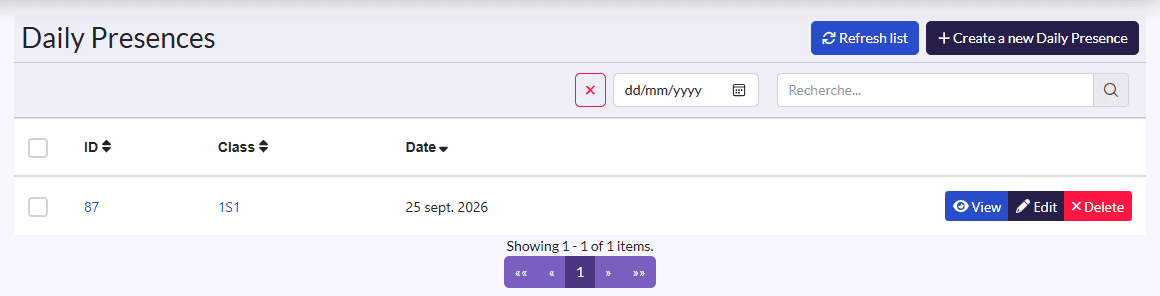
The list shows one record per row, with its class and its date (the day of the roll call), most recent first.
- Refresh list reloads the list.
- Create a new Daily Presence opens the roll call form.
- Filter by date shows only one day's roll calls. The search field and the ✕ button clear the filters.
- On each row: View, Edit, Delete.
Take a class's roll call
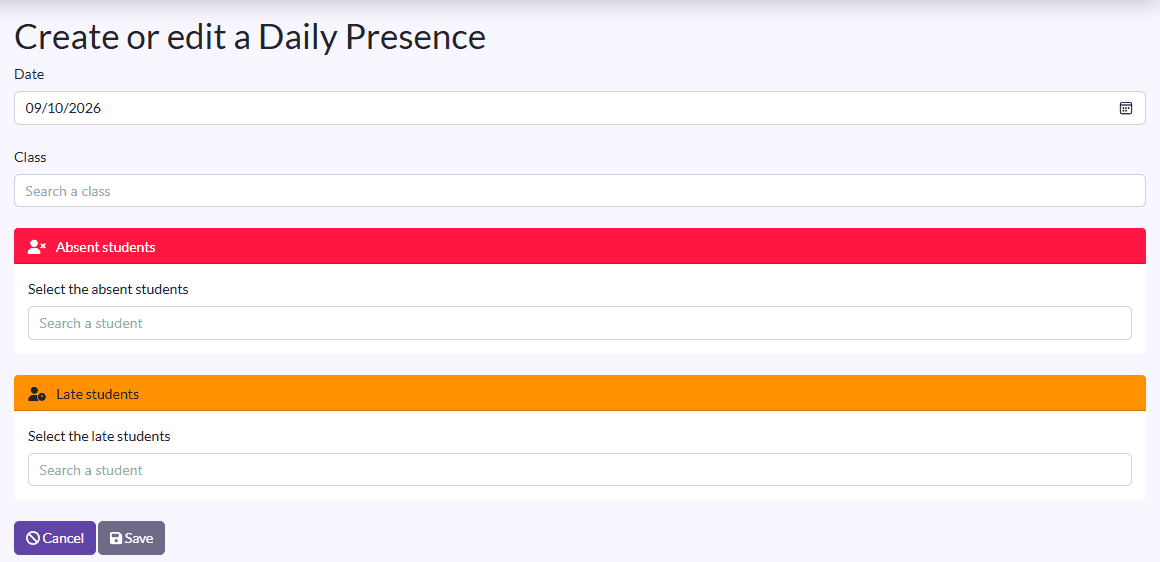
- Click Create a new Daily Presence.
- Date: the day of the roll call, today by default. For a forgotten roll call, pick that day: a past day of the current school year, never a future one.
- In Class, type the class name and select it. Each suggestion shows the class's annex and school.
- In Absent students, search for and select each absent student. They are added in red below the field; click ✕ to remove one.
- Do the same in Late students for the students who arrived late.
- Check the Summary (number of absent and late students, and total).
- Click Save.
Good to know
- The student search only suggests students of the selected class: pick the class first.
- Save stays greyed out until a student is selected. If the whole class is present, there is nothing to record.
- When the date isn't today, a message above Save reminds you which day parents will be told.
- If you record both absent and late students, two rows are created in the list: an "Absence" and a "Late", for the same date.
View a roll call
Click View. The page shows the type (red Absence or orange Late badge), the roll call's date, its creation date, the class and the students concerned. Click a student to open their record.
Correct a roll call
- Click Edit on the row.
- The form only shows the list matching the record's type: absent students for an absence, late students for a late arrival.
- Add or remove students, then click Save.
To add late arrivals to a day where you only entered absences, create a new daily presence for the same class.
Delete a roll call
Click Delete, then confirm. Deleting is permanent.
What happens next
The parents (main and second parent) of each student get a notification in the parent app (in French):
| Student | Notification |
|---|---|
| Absent, today's roll call | "Absence : Votre enfant … est absent aujourd'hui" (… is absent today) |
| Absent, a past day's roll call | "Absence : Votre enfant … était absent le 07/10/2026" (… was absent on 07/10/2026) |
| Late | "Retard : Votre enfant … est arrivé en retard aujourd'hui" (… arrived late today), or "le 07/10/2026" |
Only parents signed in to the parent app receive it. Absences and late arrivals also show in the parent app's attendance section, on the day of the roll call.
FAQ
I can't find the student in the search. Check that the right class is selected and that the student is enrolled in that class for the current year.
I can't see the "Daily Presence" menu. Your school may record absences per lesson: use Session. Otherwise, your role doesn't have access to this screen (see the box at the top of the page).
See also
- Session, for schools that record absences at each lesson
- Daily Report
- Student Subscription