
Communications
Invitations
Invite staff, teachers and parents one at a time or from an Excel file, then send or print the invitations.
- Where to find it
- CommunicationsInvitations
- Who can use it
- CEOAdmin managerDirectorAdmin
Video coming soon Checked on October 3, 2026
An invitation lets a person create their TheSchool account with the right role: administrator, teacher, parent, student… It is sent by email or SMS, or printed with a QR code to hand over. See also Invite users.
The screen at a glance
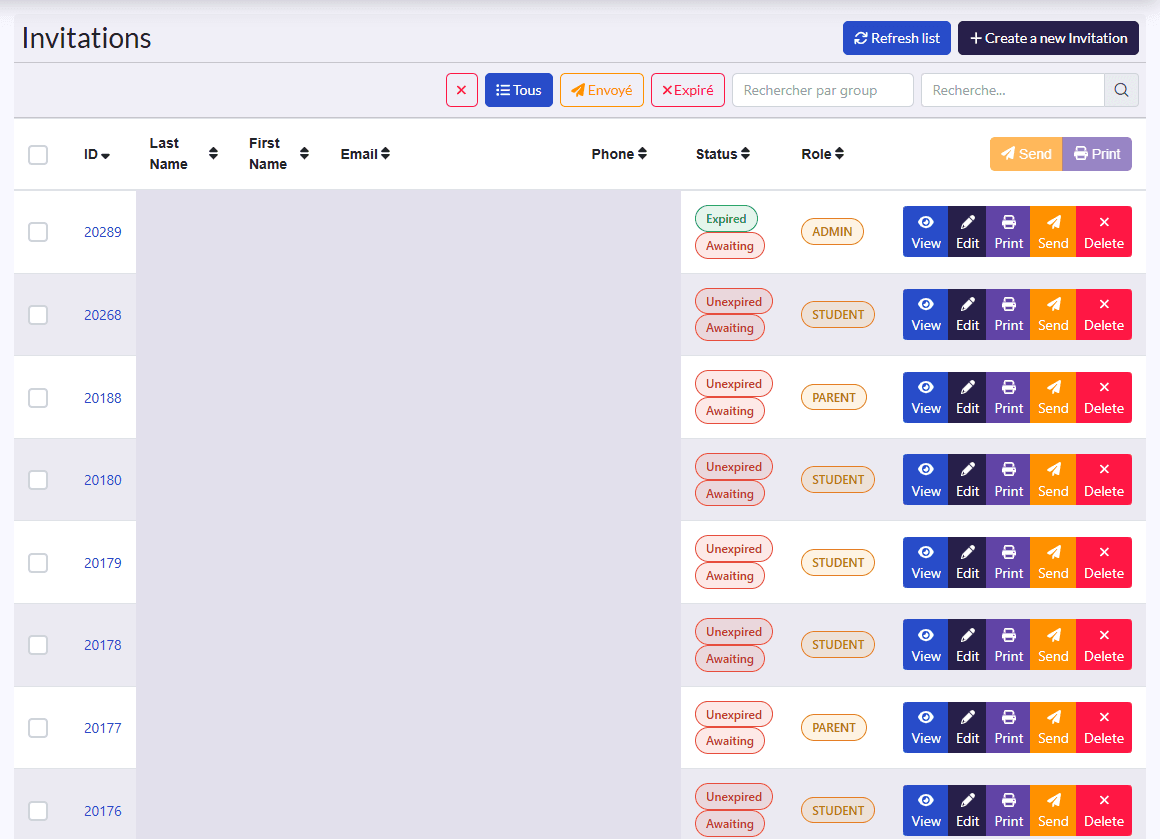
- Filters: all, sent, expired, role, search, and the ✕ button.
- Columns: ID, Last Name, First Name, Email, Phone, Status (expired or not, sent or pending), Role.
- Actions: Refresh list, Create a new Invitation, Parcourir (Excel import); on a selection, bulk send and Imprimer (print); on each row View, Edit, Imprimer, Envoyer (send), Delete.
Invite a person
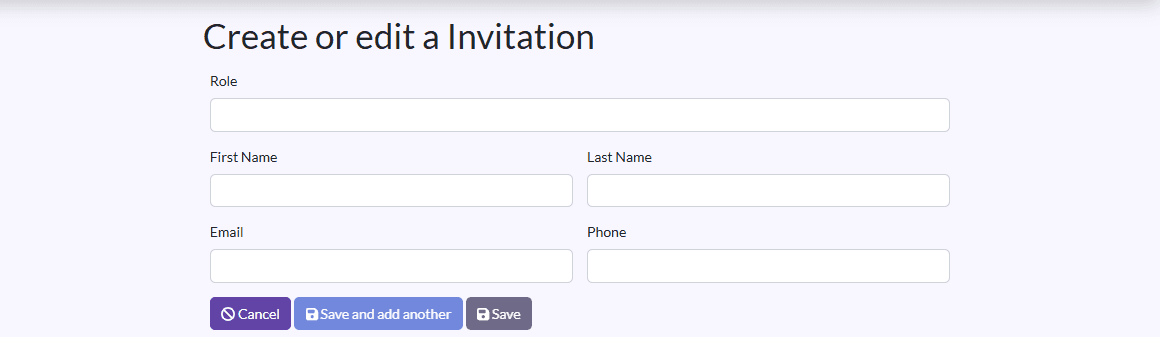
- Click Create a new Invitation.
- Pick the Role.
- Fill in First Name, Last Name, Email and Phone.
- For a student, pick their Parent and, if needed, their 2nd Parent.
- Click Save, or Sauvegarder et créer un/une autre (save and create another) to go on.
Import a list
Parcourir imports an Excel file of invitations in one go. To create the accounts themselves (students, parents, teachers…) from a file, use Import data instead.
Send or print
- Tick invitations and use bulk send, or Envoyer on a row.
- Imprimer produces the invitation sheet with its QR code: the person scans it with the app to create their account.
- The Status shows whether the invitation was sent and whether it has expired.