
Import data
Create your classrooms, classes, teachers, parents and students in one go from an Excel file.
- Where to find it
- UsersImport data
- Who can use it
- CEOAdmin managerDirectorAdmin
Import data creates in one go, from an Excel file, your classrooms, classes, teachers, parents and students. A 7-step wizard guides you: what to import, Excel template, your file, check, options, import, result. Nothing is saved before the final confirmation.
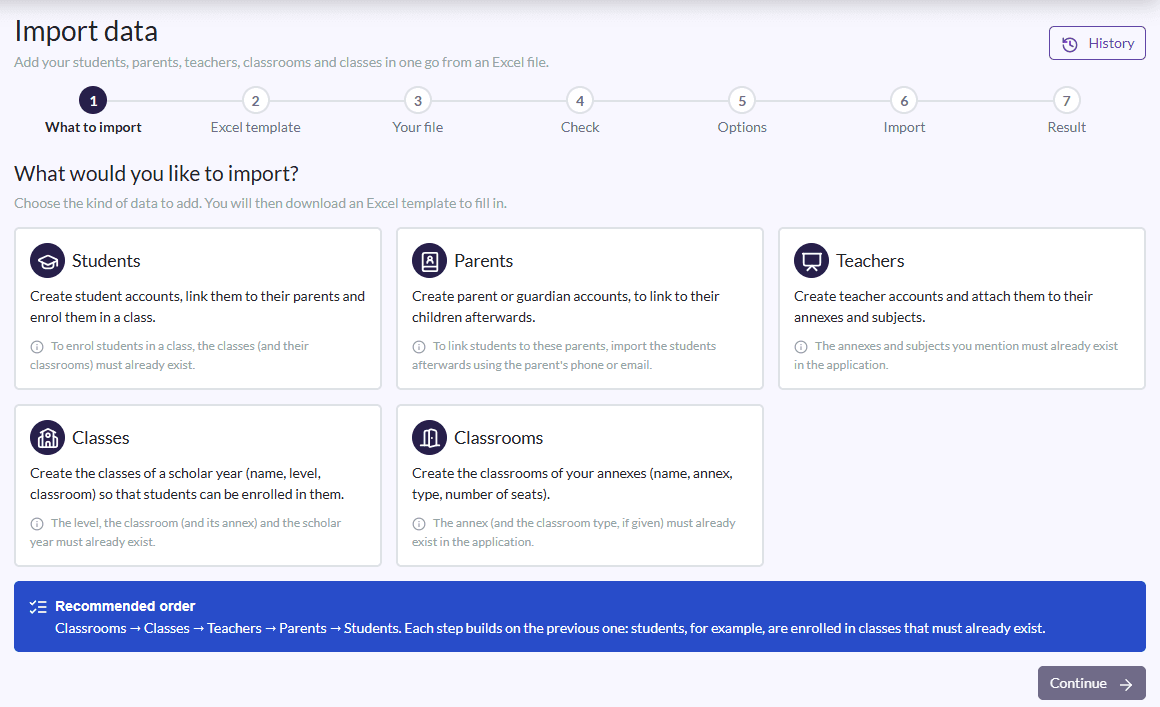
In what order to import
Follow the recommended order shown on screen: Classrooms → Classes → Teachers → Parents → Students. Each step builds on the previous one: students, for example, are enrolled in classes that must already exist.
| Type | What is created | Must already exist |
|---|---|---|
| Classrooms | Your annexes' rooms (name, annexe, type, number of seats) | The annexe, and the room type if given |
| Classes | A school year's classes (name, level, room) | The level, the room and the school year |
| Teachers | Teacher accounts, linked to their annexes and subjects | The annexes and subjects named |
| Parents | Parent or guardian accounts | — |
| Students | Student accounts, linked to their parents and enrolled in a class | The classes (and their rooms) |
Import a file
- What to import: pick the data type, then Continue.
- Excel template: click Download the Excel template. It has the right columns, drop-down lists with your school's values and instructions. Fill it in, then I have my file, continue. Already have your own file? Upload it as it is: columns are recognised automatically, in French, English or Arabic.
- Your file: Choose a file, then Upload and check.
- Check: the screen says “All set” or lists what needs your attention, row by row. Download the rows to fix (Excel) gives you a file to fix and upload again. See how the columns were understood shows how columns were matched.
- Options: two choices (see below), a summary “What is going to happen”, then Start the import.
- Import: you can leave the page; the import goes on on the server.
- Result: created, completed, skipped, in error, the row-by-row detail and the files to download.
The rules to remember
- One row = one record. Keep the header row.
- Columns marked with a star (*) are required.
- Dates as DD/MM/YYYY. Phones: 10-digit Algerian mobiles (05, 06 or 07…).
- A phone number or an email can only belong to one account.
The options
| Question | Recommended | Other choice |
|---|---|---|
| If a row has a problem | Cancel everything: nothing is imported until all rows are valid. | Import valid rows only: rows in error are skipped and listed at the end. |
| If the record already exists | Leave it as it is: sending the same file again creates no duplicate. | Complete it with the file's values: an empty cell never erases data. |
An existing class is never changed by a file: it is left as it is.
Accounts created by the import
Accounts are created silently: no SMS or email is sent. The username is the phone (or email) and the initial password is the phone number (or “12345” if there is none). You confirm you understood this before starting. This password is only for the first sign-in, where the person chooses a new one. At the end, download the list to hand to families.
History
The history lists your past imports with their result. Each import can be opened (Open), retried (Try again) or deleted (Delete).