
Drivers
The accounts of the school's bus drivers, their bus and the badge history of their students.
- Where to find it
- UsersDriver
- Who can use it
- CEOAdmin managerDirectorAdmin
- Condition
- Only visible if the Transport module is enabled for your school.
The Drivers screen lists the school's accounts of the Driver type. It is the users list filtered on that role, as the Parent screen is for parents.
Screen overview
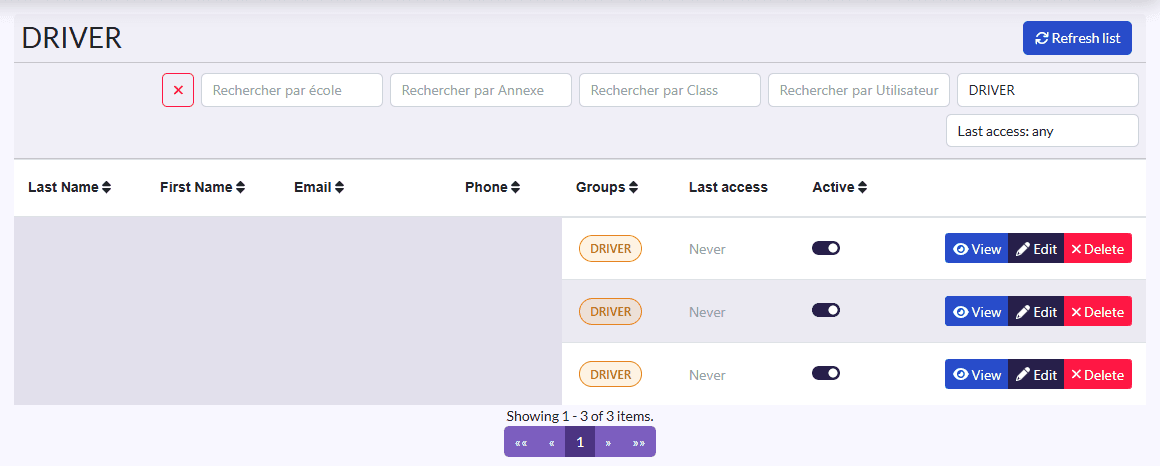
- Filters: school, annex, class, user, group (already set to DRIVER), last access, and the ✕ button.
- Columns: Last Name, First Name, Email, Phone, Groups, Last access, Active.
- Actions on each row: View, Edit, Delete.
Add a driver
Like any user, a driver must be invited: see Invite users. They show here as soon as they have the Driver role.
To give that role to an existing account: Edit the user in User management, then add DRIVER in Groups.
Assign a driver to a bus
In Bus, edit the bus and choose its Driver. The driver then sees the Transport screens: lines, stops, assignments and student badges.
Help a driver sign in
View or Edit the driver, then use the password reset button. Edit also lets you correct their Email and Phone, which they sign in with.
Last access
The Last access column shows whether a driver has ever signed in ("Never" otherwise): handy to remind those who have not activated their account yet.