
Users
Student
Each student's record (parents, accompanists, enrolment), quick roll call and graduation from the list.
- Where to find it
- UsersStudent
- Who can use it
- CEOAdmin managerDirectorAdminHead teacherTeacher
Video coming soon Checked on October 3, 2026
A student record is created automatically when an invited student activates their account (see Invitations), or by Import data. It brings together their parents, the people allowed to pick them up and their enrolment.
The screen at a glance
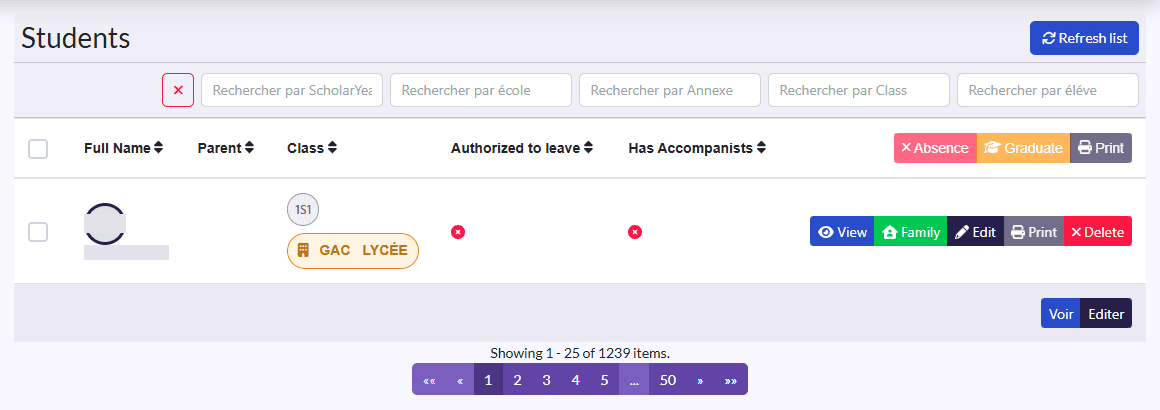
- Filters: class, search by student or parent, and the ✕ button.
- Columns: Full Name, Parent, Class, Authorized to leave, Has Accompanists.
- Actions on a selection: Absence, Graduer (graduate), Imprimer (print).
- Actions on each row: View, Famille (family), Edit, Delete.
The student record
View shows:
- the Registration Number, identity, gender and birth date;
- Authorized to leave and Has Accompanists;
- the Parent and the 2nd Parent;
- the accompanists: people allowed to pick up the child, with Create a new Accompanist and Delete;
- their Student Subscription: class, school system, billing type, payment completed;
- the timetable, family and Imprimer buttons.
Complete a record
Edit lets you enter the Registration Number and pick the Parent and 2nd Parent. Both parents receive the notifications about the child.
Quick roll call from the list
- Filter the list on a class.
- Tick the absent students.
- Click Absence: a daily presence is created for them, and their parents are notified.
Graduate from the list
Tick students and click Graduer: the same window as in Student Subscription opens to pick the destination class.