
Users
Teacher
Complete and view each teacher's record (subjects, annexe, classes, timetable).
- Where to find it
- UsersTeacher
- Who can use it
- CEOAdmin managerDirectorAdminHead teacher
Video coming soon Checked on October 3, 2026
A teacher record is created automatically when a person invited with the Teacher role activates their account (see Invitations), or by Import data. This screen is where you complete and view it.
The screen at a glance
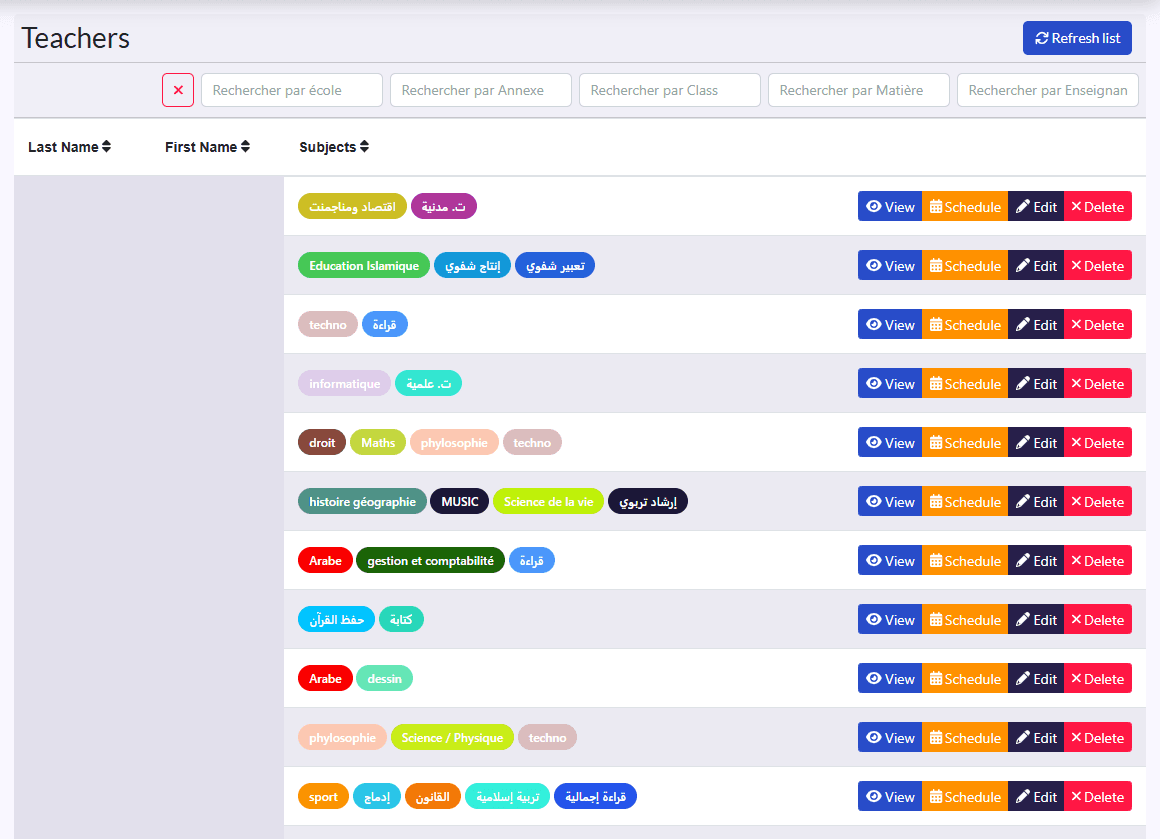
- Filters: school, annexe, class, subject, teacher, and the ✕ button.
- Columns: Last Name, First Name, Subjects.
- Actions on each row: View, Calendrier (calendar: their timetable), Edit, Delete.
Complete a record
- Click Edit.
- Fill in the Teacher Id, Social Security and Start Date.
- Pick their Subjects and Annex.
- Click Save.
The teacher record
View shows their identity, subjects and annexe, their Classes per school year, their Teacher Coordination (subject, level, year) and a button to add or change their classes. The calendar button opens their timetable in the Schedule.