
Users
Users management
All the school's accounts, their roles and annexes, and password resets.
- Where to find it
- UsersUsers management
- Who can use it
- CEOAdmin managerDirectorAdmin
Video coming soon Checked on October 3, 2026
Users management lists all the school's accounts, whatever their role. This is where you change someone's roles, assign annexes or schools to them and reset their password.
The screen at a glance
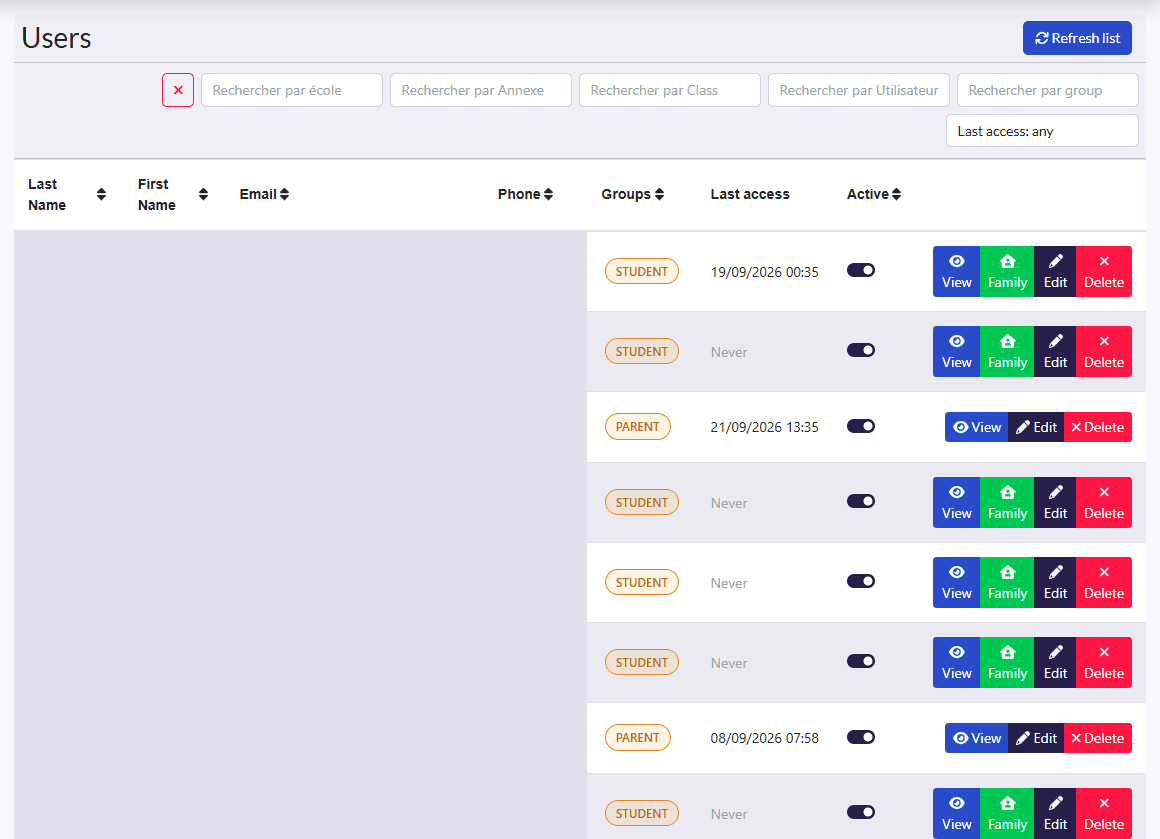
- Filters: school, annexe, class, user, group (role), and the ✕ button.
- Columns: Last Name, First Name, Email, Phone, Groups, Active.
- Actions on each row: View, family (for parents), Edit, Delete.
Change roles
- Click Edit.
- In Groups, add or remove roles (a person can have several).
- Fix the Email and Phone if needed.
- Click Save.
Roles decide which screens show: see Roles and access.
Assign annexes or schools
From the record (View):
- Affecter des Annexes (assign annexes), for a director or administrator: they will only see these annexes' data;
- Affecter des Ecoles (assign schools), for an accountant (CEO only): the schools whose finances they manage.
Reset a password
On the record or in the form, the password reset button helps someone who can no longer sign in.