
Communications
Notifications
Send information to the phones of chosen people, whole annexes or classes.
- Where to find it
- CommunicationsNotifications
- Who can use it
- CEOAdmin managerDirectorAdminHead teacherTeacher
Video coming soon Checked on October 3, 2026
A notification sends information (formatted text and attached files) to the phones of the chosen recipients: people, whole annexes or classes. It shows in the parent and teacher apps.
The screen at a glance
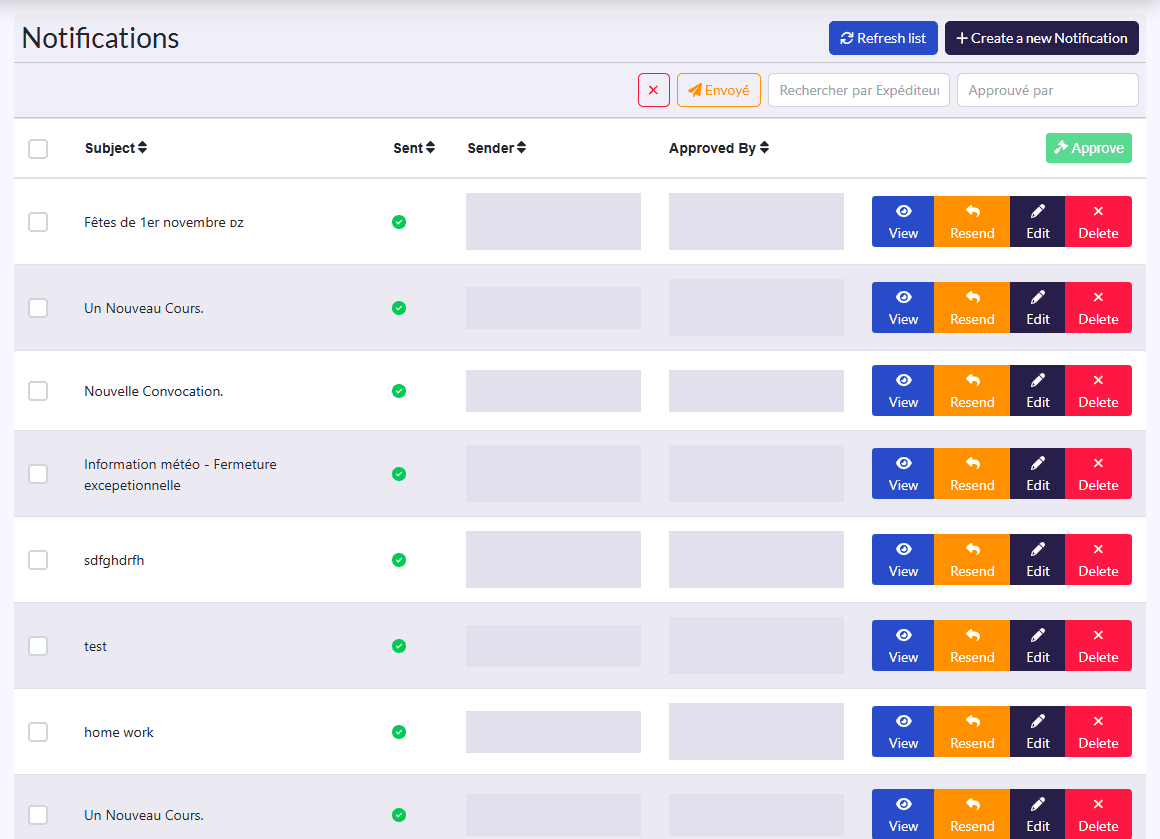
- Filters: sent only, sender, approver, and the ✕ button to clear them.
- Columns: Subject, Sent (green tick), Sender, Approved By.
- Actions: Refresh list, Create a new Notification; on a selection, Approve; on each row View, send (Renvoyer, resend, for one already sent), Edit, Delete.
Create a notification
- Click Create a new Notification.
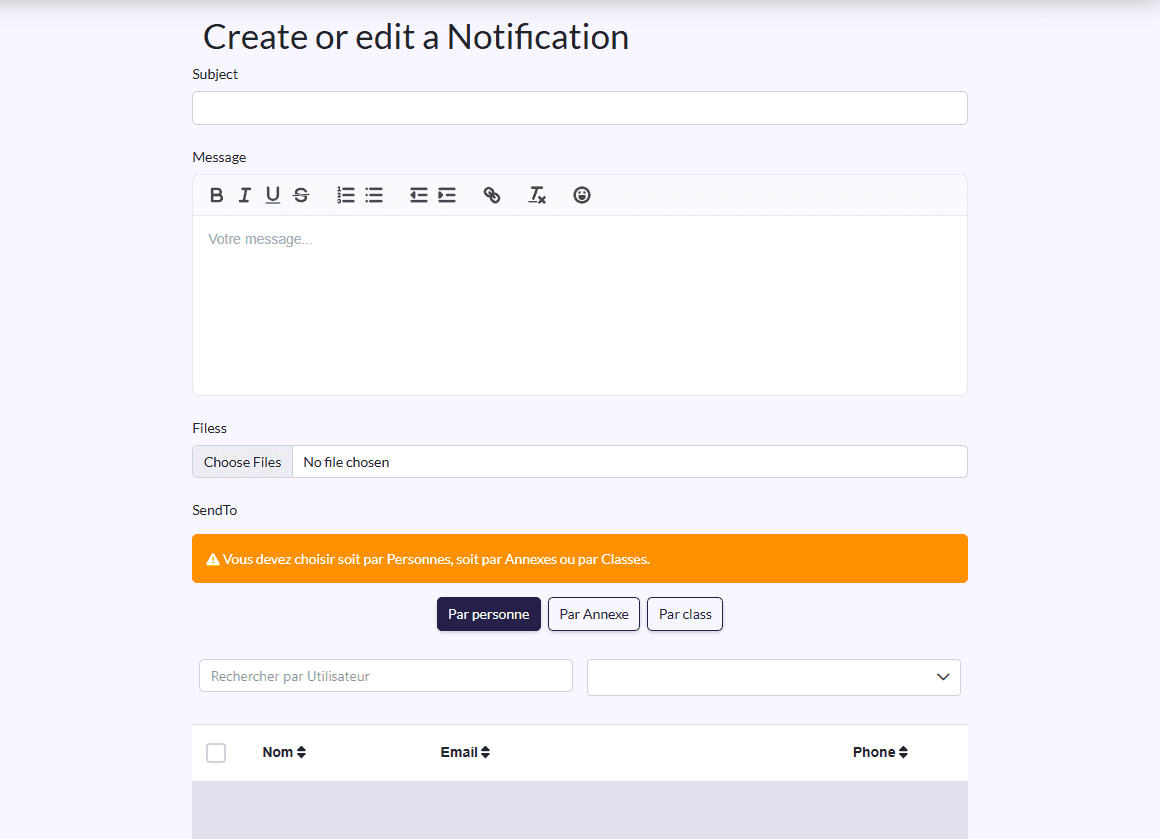
- Fill in the Subject and the Message (formatted text), and attach Files if needed.
- In SendTo, choose how to target with the three buttons: Par personne (by person: search and tick users), Par Annexe (by annexe) or Par class (by class). A table shows the matching recipients.
- Click Save.
Approve and send
If notification approval is on in Setings, a notification must be approved before it is sent: tick it and click Approve. The send button then shows on the row, and the Sent column turns green once it has gone.
See who read it
View shows the notification, its files and the Receivers: who received it and who saw it.