
Health Survey
Receive parents' health reports (fever, cough…), reply to them and follow treatments.
- Where to find it
- SchoolingStudents ManagementHealth Survey
- Who can use it
- CEOAdmin managerDirectorAdminHead teacherTeacher Parents: from the parent app
A health survey reports a student's health: symptom, temperature, medication to take, prescription. Most of the time the parent sends it from the parent app, for example in the morning before bringing a child with a fever. The school replies: the child can come, can't come, or the parent must come and pick them up.
Only parents create reports, from the parent app: the school receives them here, replies and prints them. For a student who falls ill during the day, call the parent and note it in the daily report.
The screen at a glance
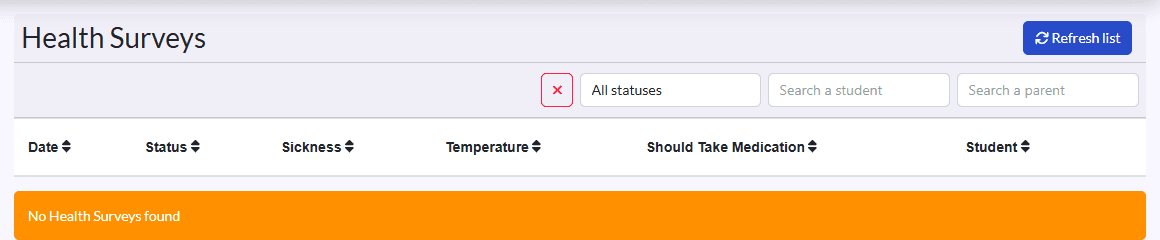
- Filters: a date and a student, and the ✕ button to clear them.
- Columns: Date, Status, Sickness, Temperature, Should Take Medication, Student.
- The temperature shows in orange above 37 °C and in red above 37.5 °C.
- Actions on each row: Répondre (reply), Imprimer (print), View, Edit, Delete.
Reply to a parent
-
On the report's row, click Répondre (or open the report with View, then Répondre).
-
Pick the reply:
Reply What the parent is told Accepted They can bring their child. Rejected They can't bring their child. Parent should come pick up the child They must come and pick up their child. -
Add a Reply Text if needed (instructions, times…).
-
Click Save.
The parent immediately gets a notification with the matching message. Replies show on the report's page, under Health Survey Reply.
View and print
View shows the full report, with an Open link for the prescription and the history of replies. Imprimer (print) gives a paper version, for example for the infirmary or the student's file.
What happens next
- At each reply, the parent who sent the report is notified (see the table above).
- When a report is created, the school's administrators get a notification that a new health report has been created.